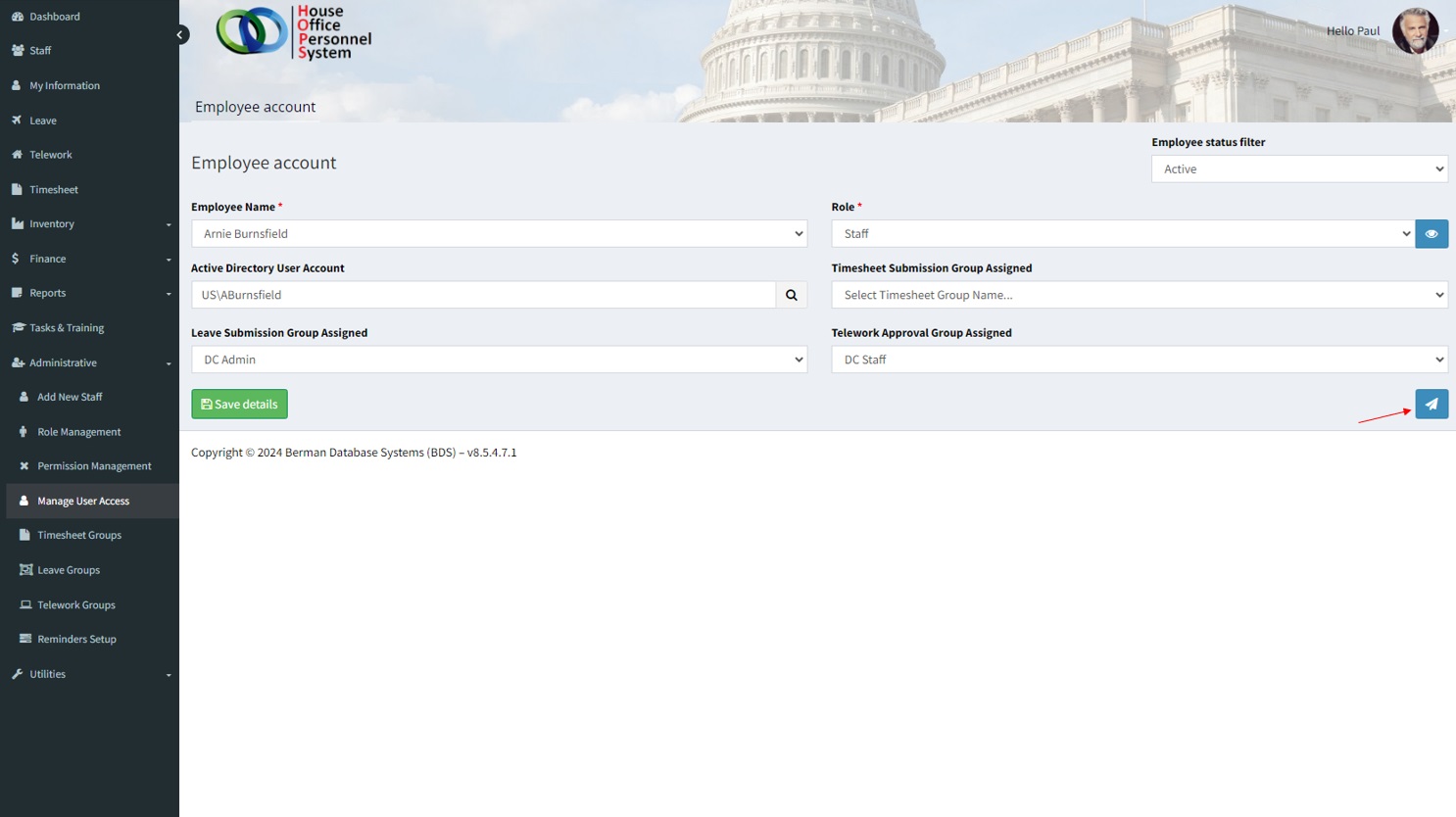
Manage User Access
The Manage User Access screen allows administrative users to assign roles (permissions for access), assign to leave, timesheet, and telework group workflows for each staffer.
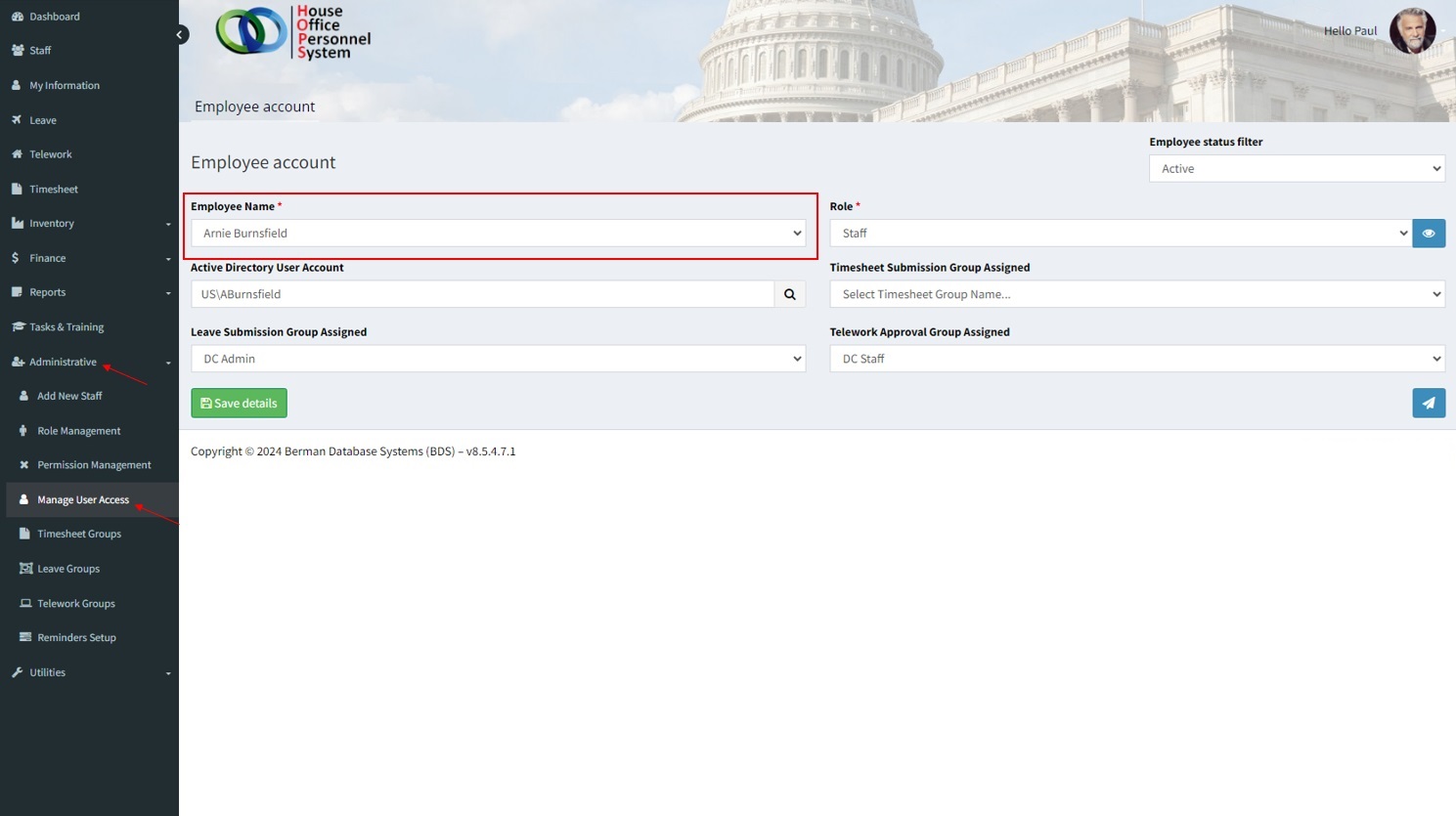
User permissions can be updated at any time by selecting [Administrative -> Manage User Access] from the left navigation menu.
From the ‘Employee Name’ dropdown*, select the staffer whose user profile you want to manage.
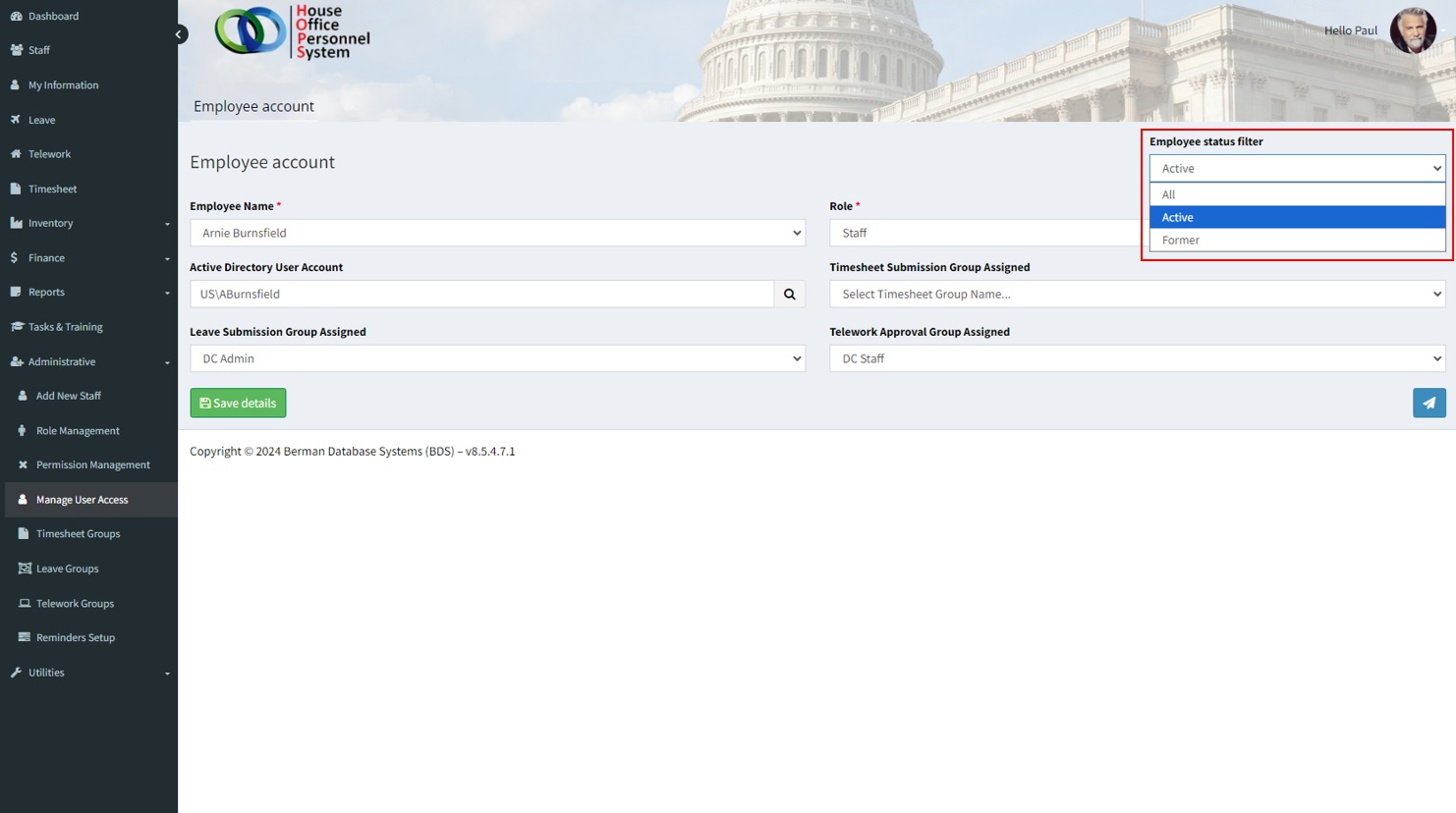
* Note: By default, the list will display current active staff. Use the ‘Employee status filter’ to view former staff.
Employee Status Filter
The ‘Employee Status Filter’ allows users to filter the staff list based on employment status. The filter options are ‘All’, ‘Active’, and ‘Former’.
Role
The role assignment indicates what the user will have access to when they are logged in to HOPS.
Click the ‘Role’ dropdown list to assign an access role to the selected staff member.
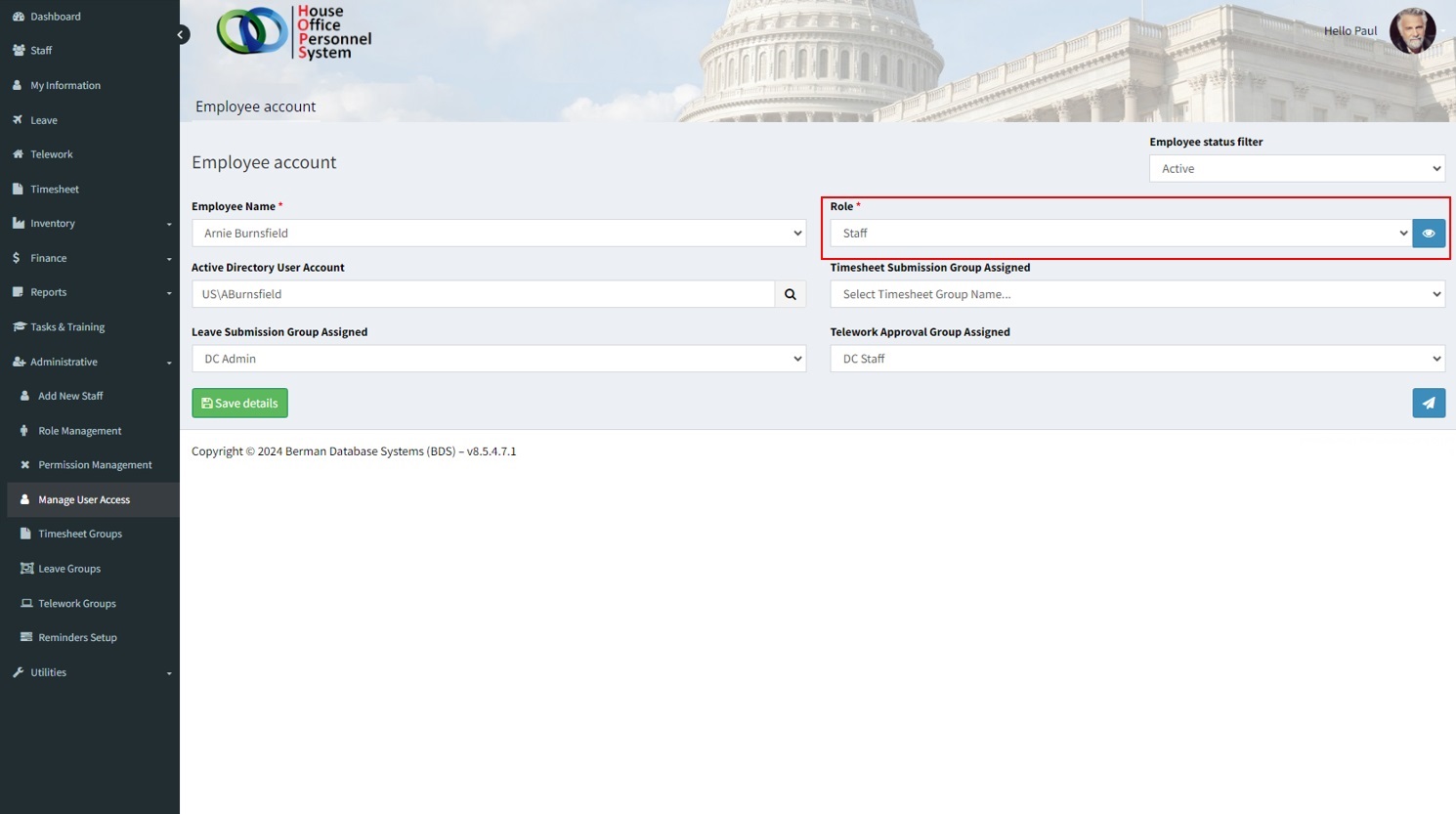
The permissions for assigned roles can be viewed/reviewed by clicking the eye icon to the right of the role dropdown list. This will display the permissions assigned to that role. Permissions can be modified for a role by selecting the edit icon at the top right of the list *.
* Only users that have access to the ‘Permission Management‘ page can modify permissions for selected roles.
Role permissions are categorized by features, each represented by an expandable header. The View and Edit columns identify permissions that are assigned:
- Green – Indicates that the selected role has been granted full access to the feature.
- Yellow – Indicates partial access to a feature. (The top level feature will be yellow if not all sub-feature items have been assigned access)
- Red – Indicates that the role has no access to the feature. (When the feature is expanded, no sub-items have been selected).
Clicking the arrow on the header allows users to view detailed permission settings for the role. If the “View” checkbox is selected, users assigned to this role can view the feature. If the ‘Edit’ permissions are granted, the users assigned to the role can also edit information related to the feature.
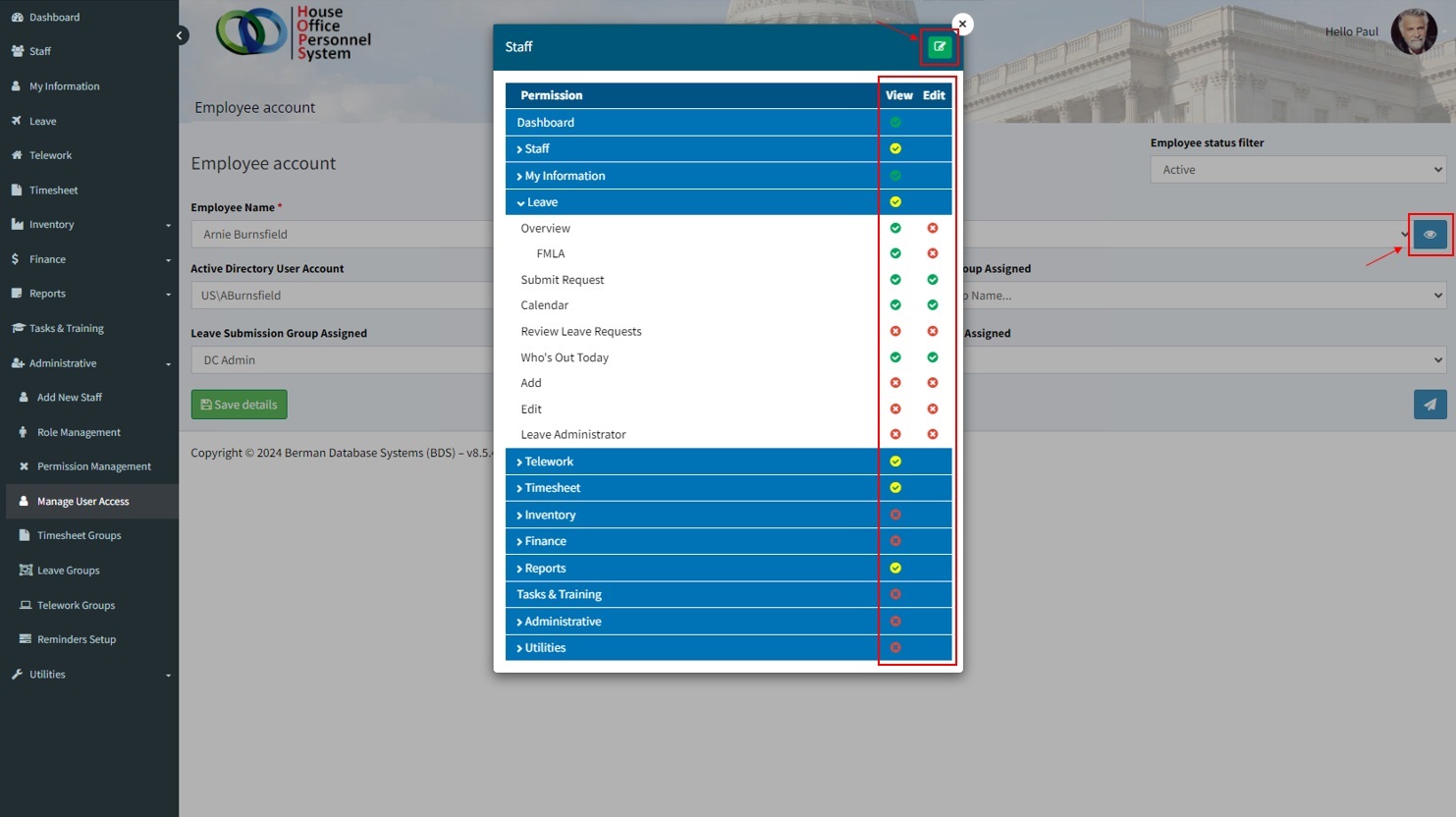
The permissions for each role can be viewed and managed from [Administrative -> Permission Management]. This will display the permissions for each role that has been selected, and allow for adjustments if needed.
Active Directory User Account
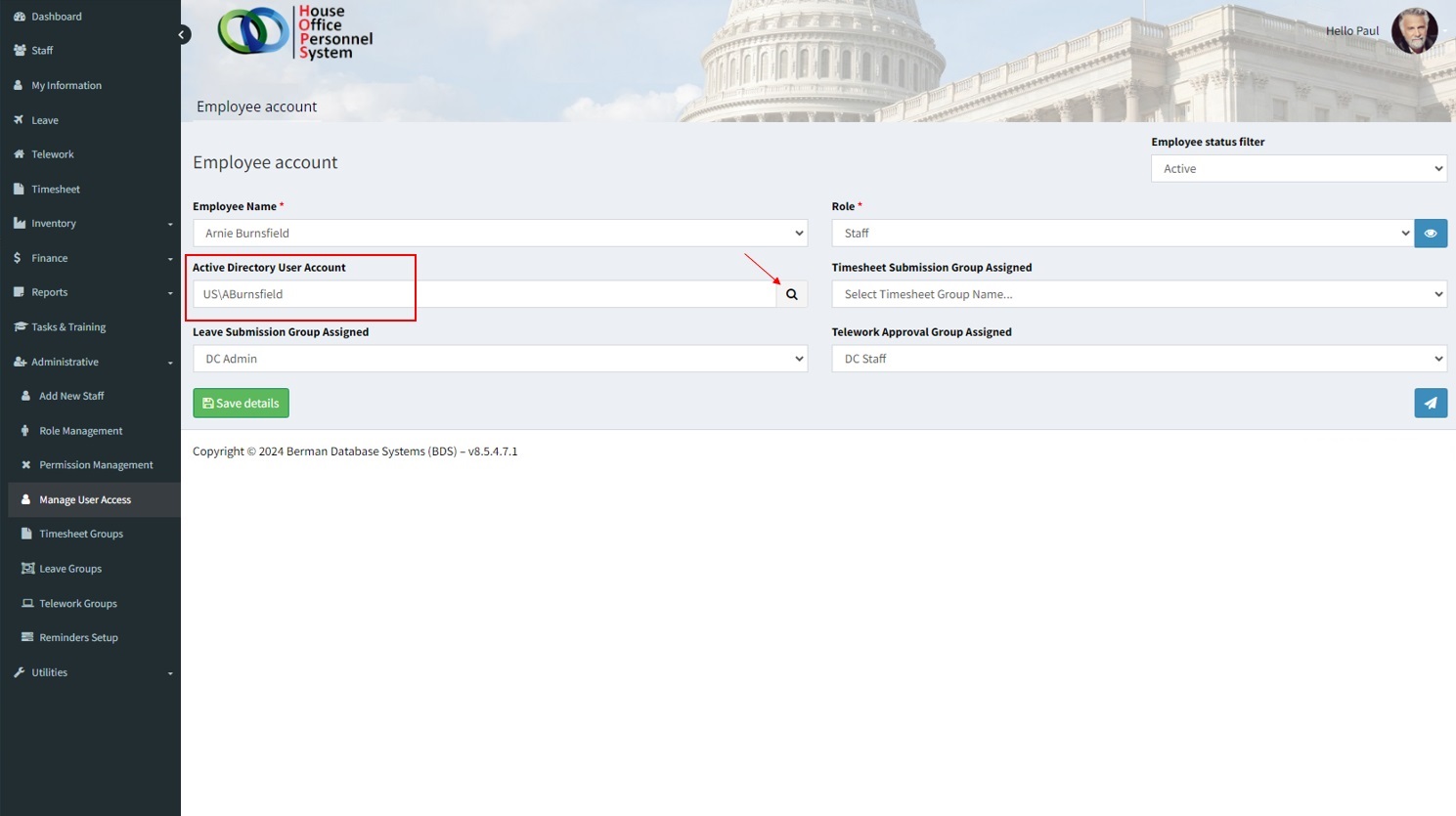
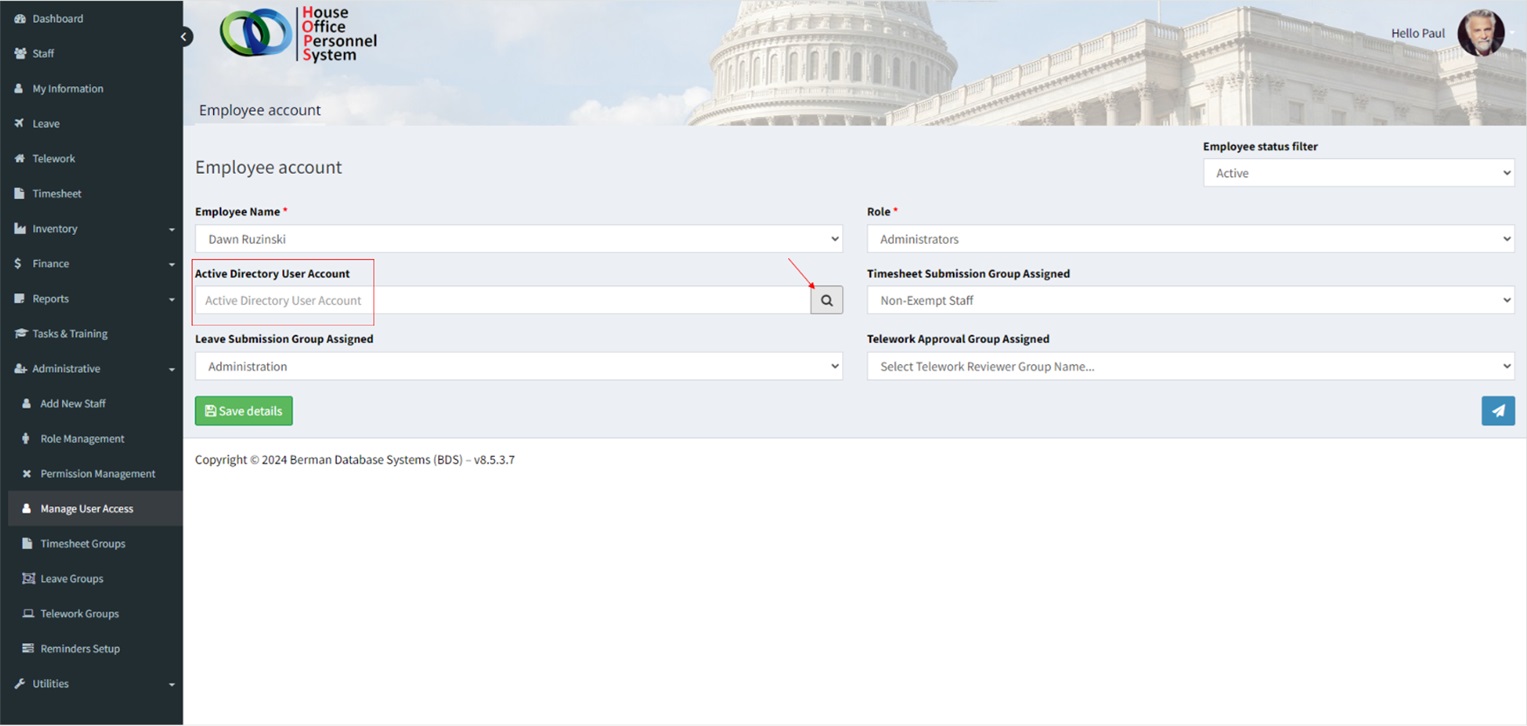
For authentication, each staffers HOPS profile is linked to their Active Directory (AD) user account. This means that users will use the same credentials for logging in to HOPS as they do for logging on to their computer. The lookup/search feature allows admins to locate the AD user name for the staff. To use the search feature, click the magnifying glass icon located to the right of the ‘Active Directory User Account’ field.
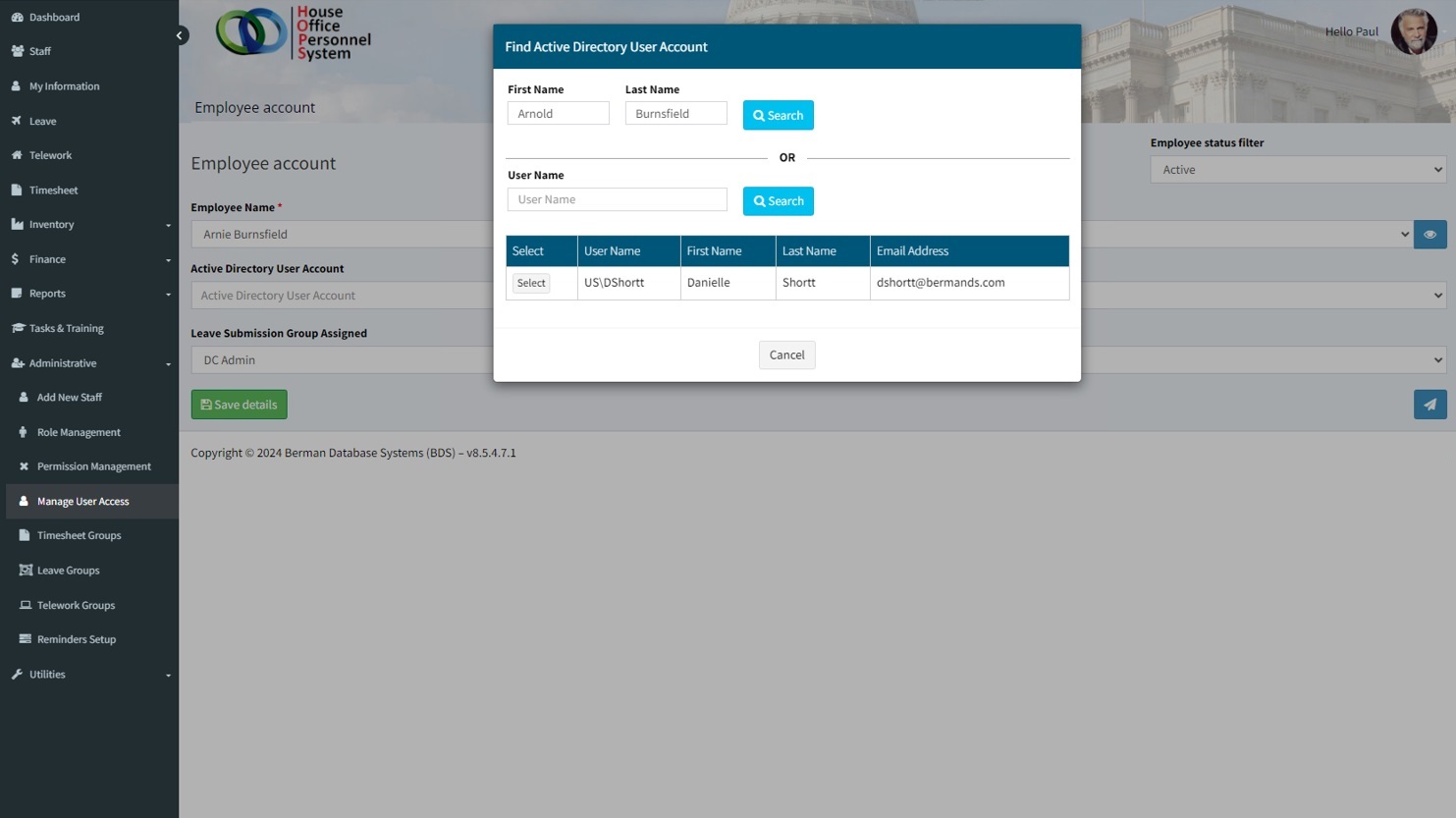
HOPS will attempt to locate the user account based on the first and last name of the staffer. The search values can be updated as needed.
If the Active Directory user name is known, it can be add to the ‘User Name’ field and searched for confirmation. Once the user name has been located, click the ‘Select’ button to accept.
Timesheet Submission Group Assigned
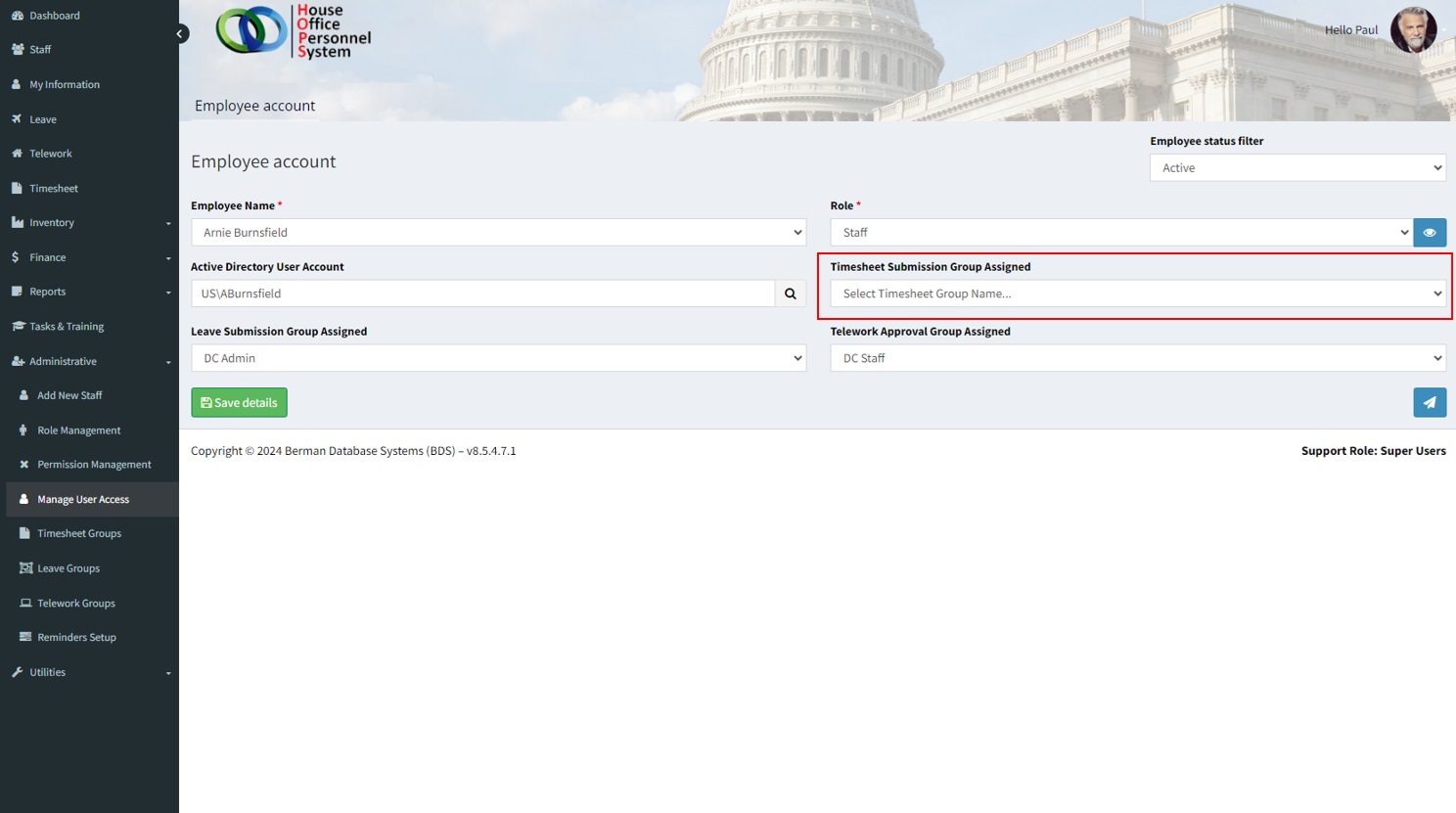
The ‘Timesheet Submission Group Assigned’ field allows for the assignment of a timesheet submission approval workflow. The approval workflows (who reviews the timesheets) are managed from [Administrative -> Timesheet Groups].
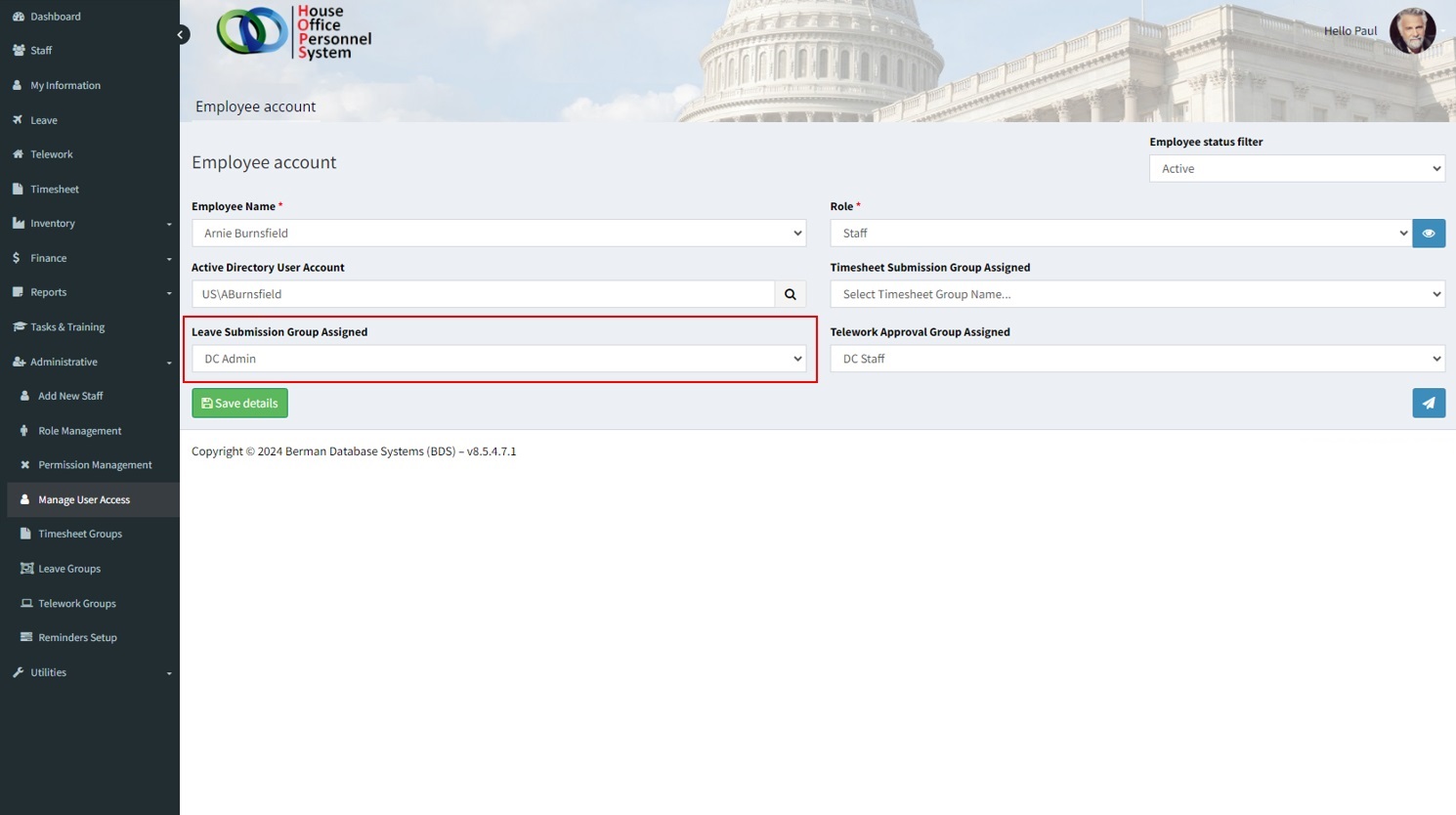
Leave Submission Group Assigned
The ‘Leave Submission Group Assigned’ field allows for the assignment of a leave submission approval workflow. The approval workflows (who reviews the leave requests) are managed from [Administrative -> Leave Groups].
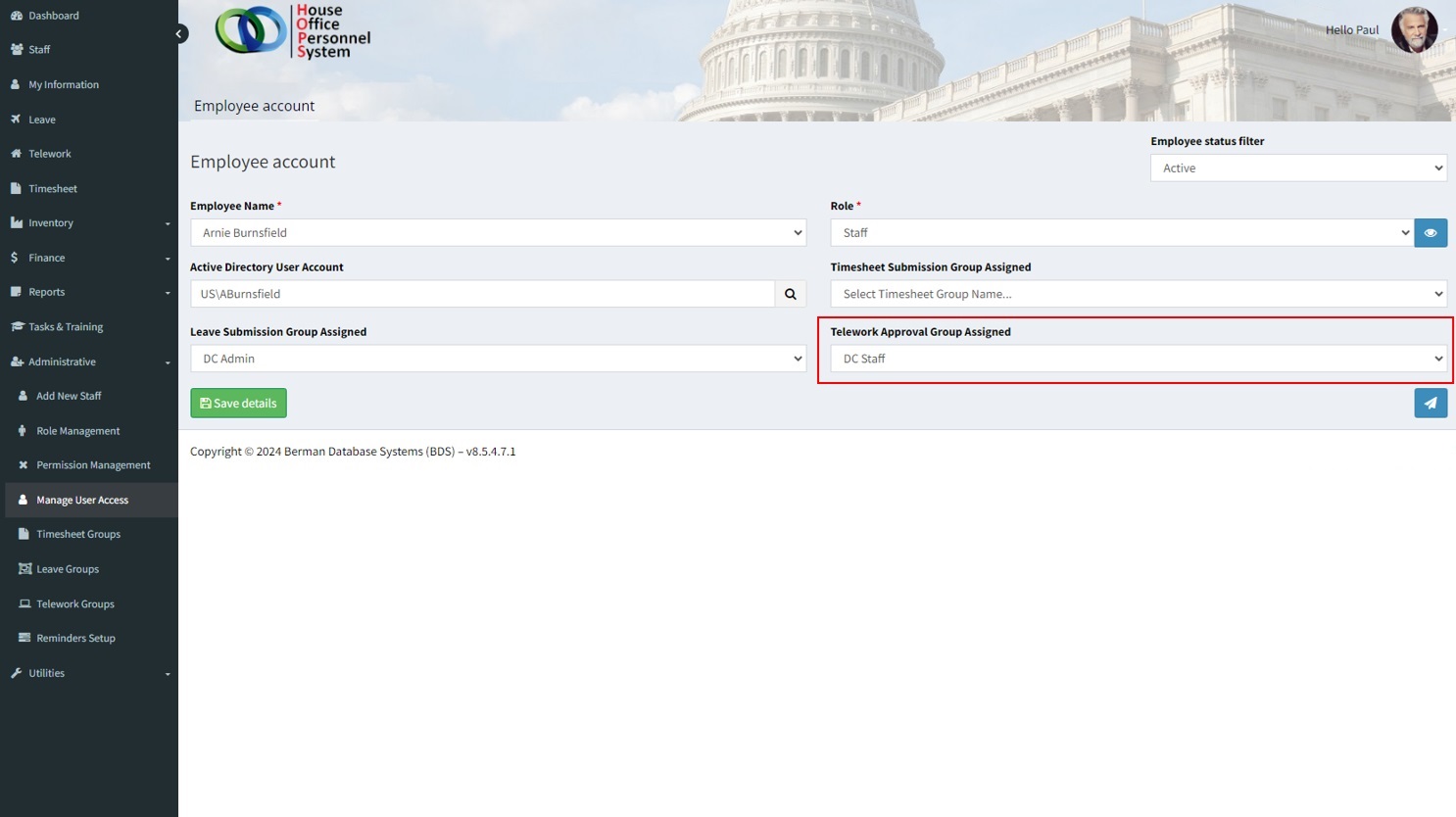
Telework Approval Group Assigned
The ‘Telework Approval Group Assigned’ field allows for the assignment of a telework approval group. The approval groups (who can approve telework requests) are managed from [Administrative -> Telework Groups].
Email Selected User
Users can be sent an introductory email notification that includes the link for access to HOPS. Clicking the email notification icon will display a preview of the message to be sent. The email can be personalized/updated prior to sending. Click here for additional details.