Adding Holidays/Admin Days
Adding Holidays/Admins Days
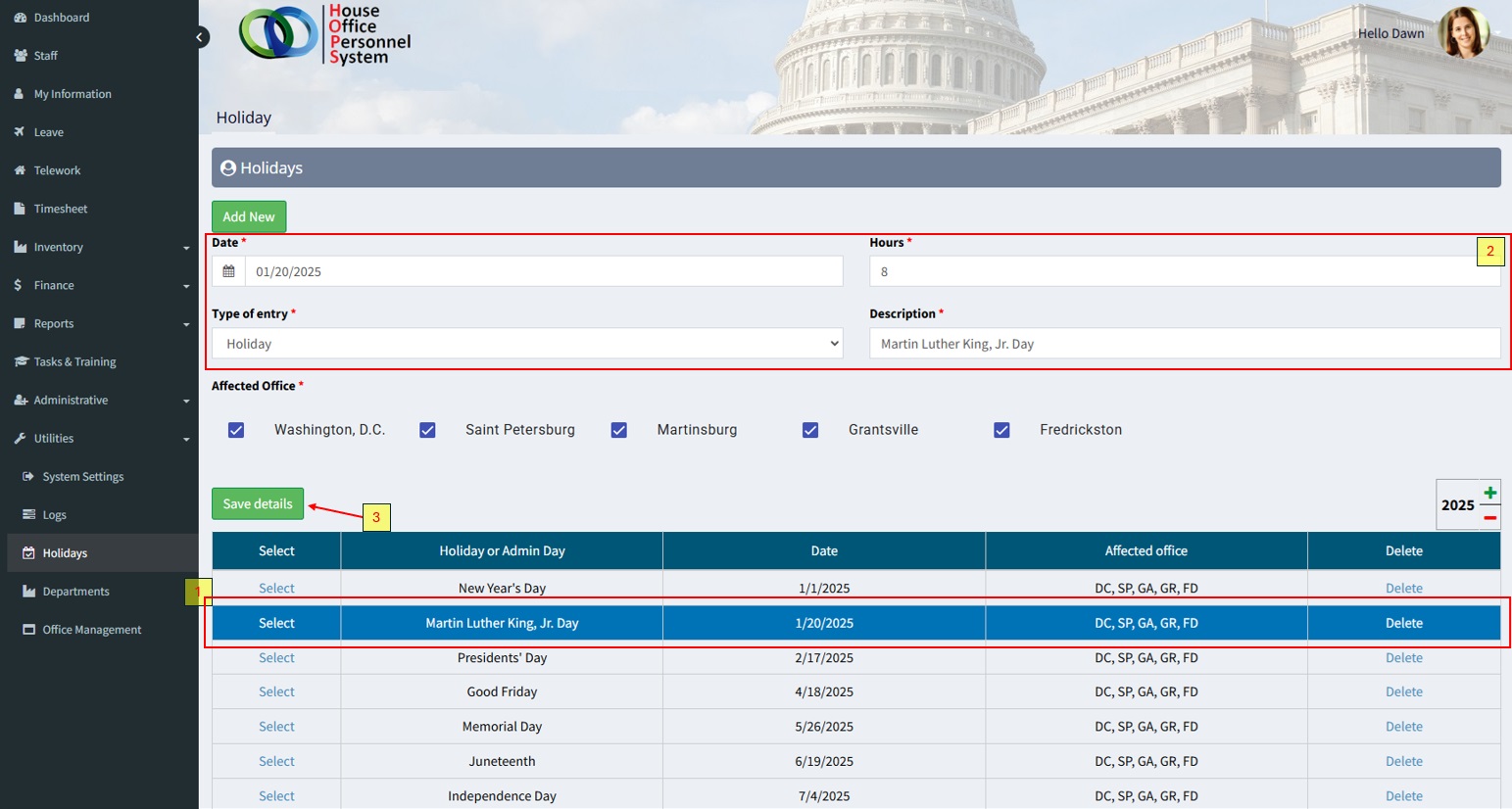
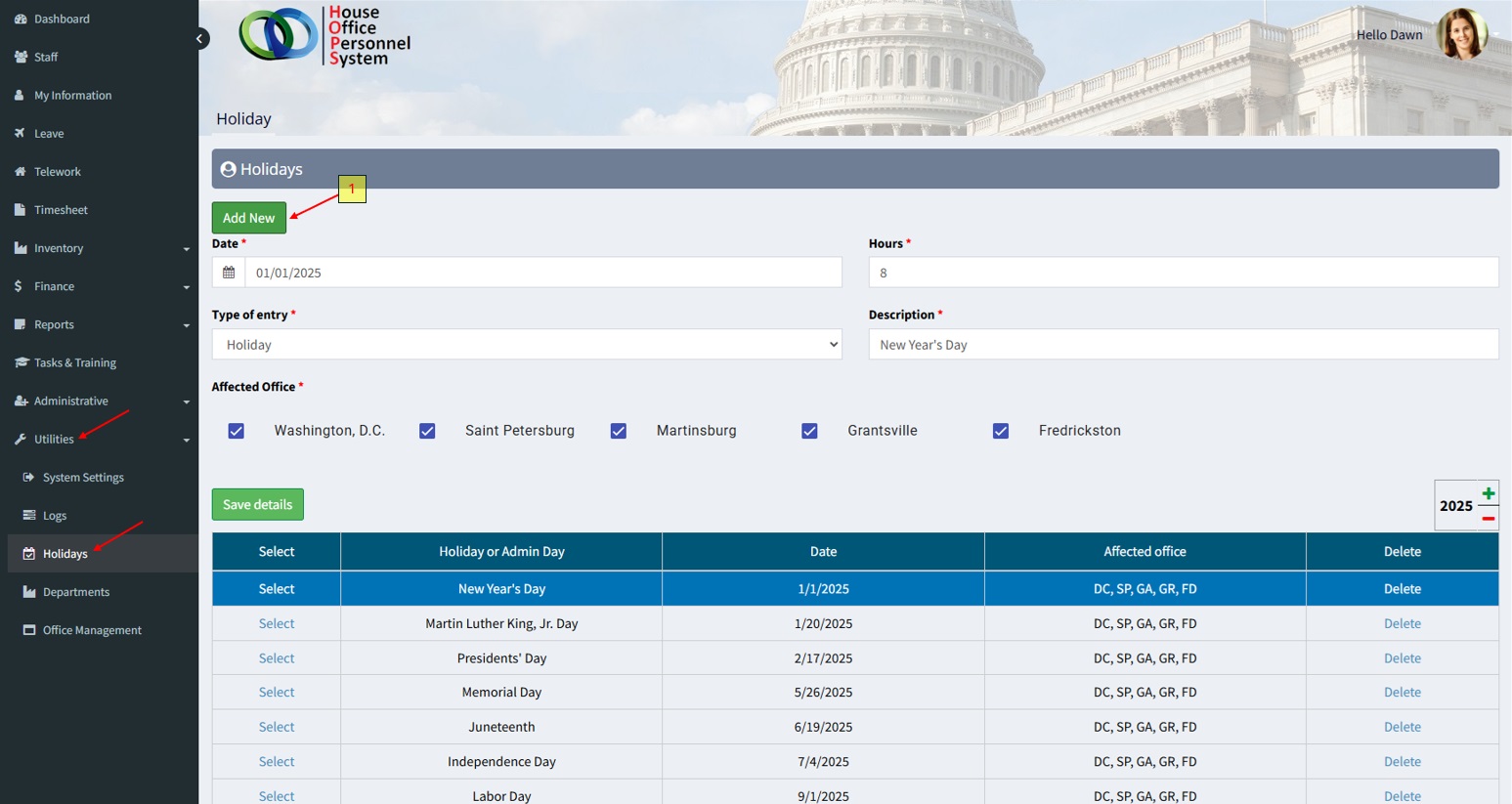
From the left navigation menu, select [ Utilities -> Holidays ].
- Click on the ‘Add New’ button to add a new admin/holiday.
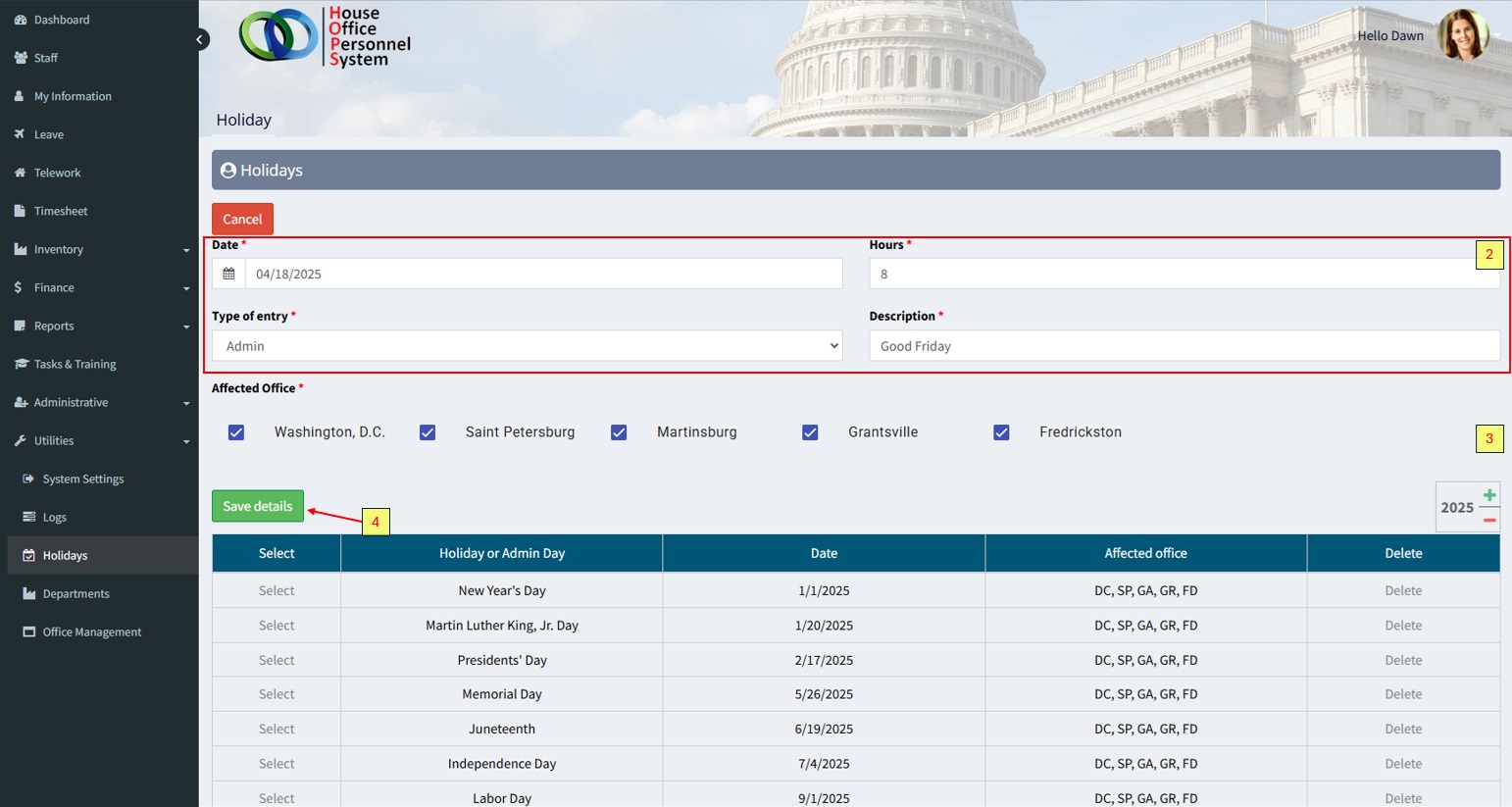
2. Enter information in all required fields indicated by the red asterisk [*].
3. Select which offices are affected by the closure. Federal ‘Holidays’ always affect all offices and staff. An ‘Admin’ day may affect only certain offices (i.e. Closure due to weather, administrative day etc.).
Note: This is generally not an issue for committees, as all staff are located in the same locations geographically.
4. Click the ‘Save Details’ button.
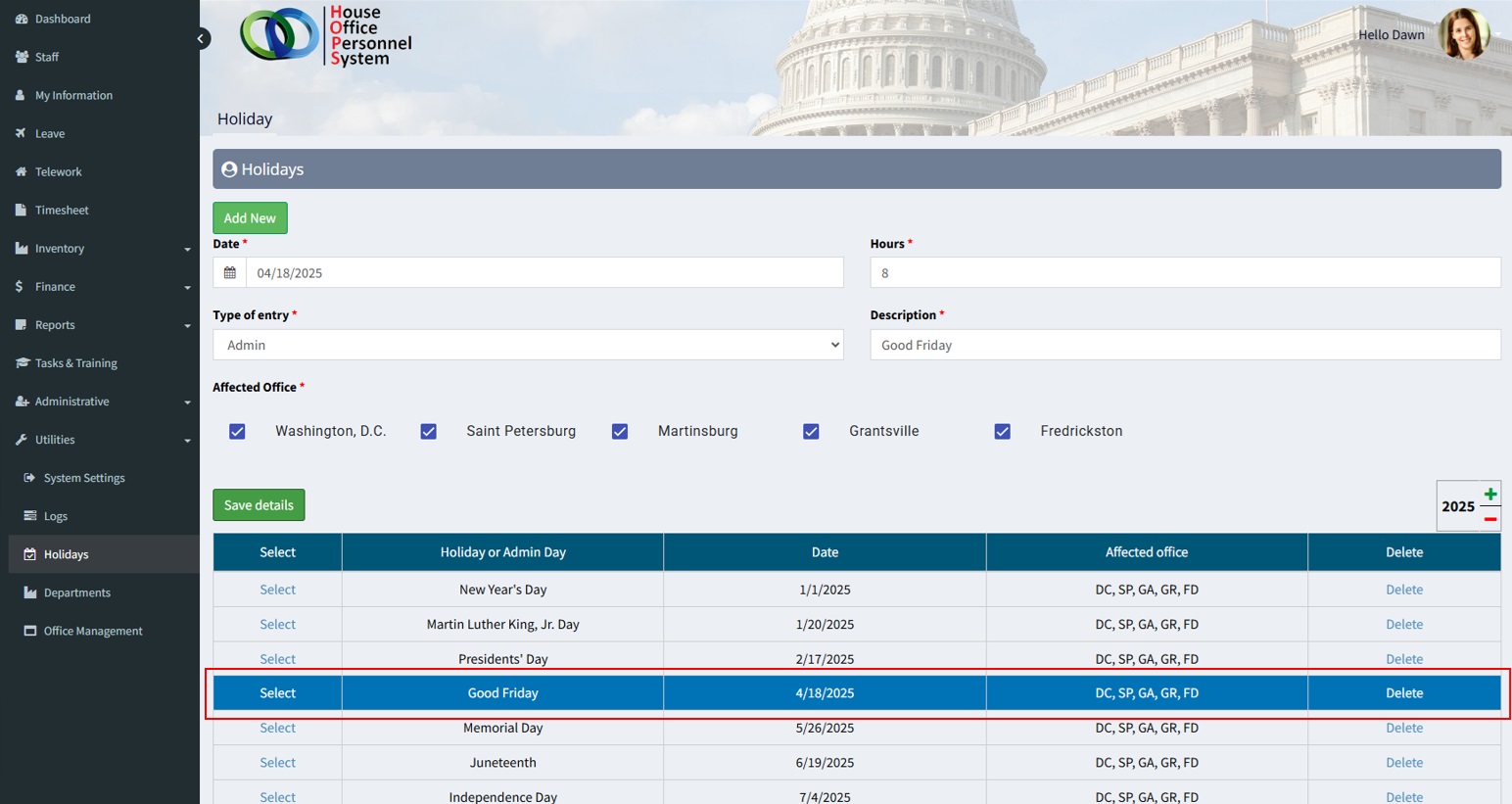
The newly created holiday or administrative day will then appear in the ‘Holiday or Admin Day’ list.
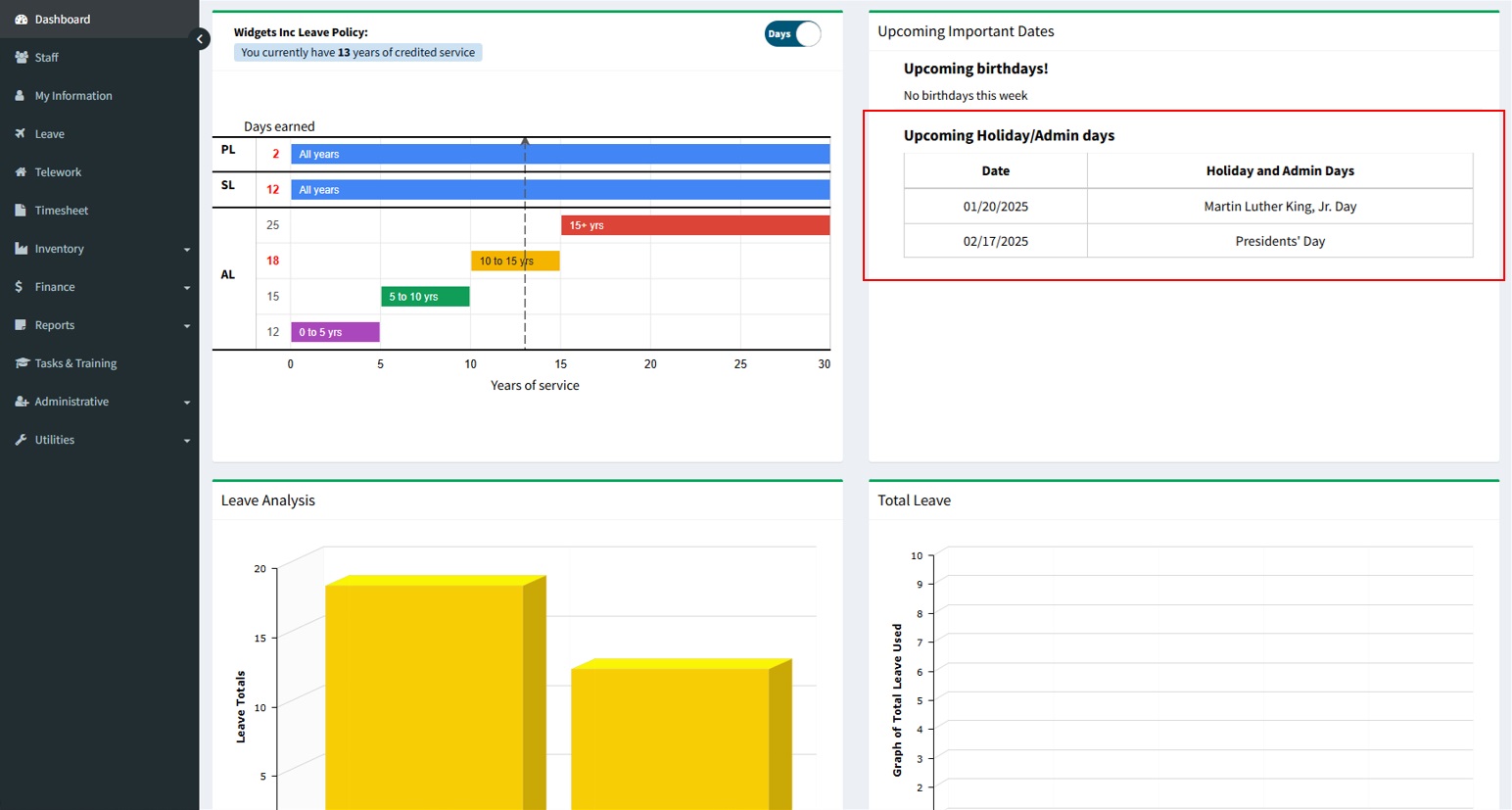
Holidays/admin days occurring within the next 45 days will be displayed in the ‘Upcoming Important Dates’ widget on the user’s dashboard.
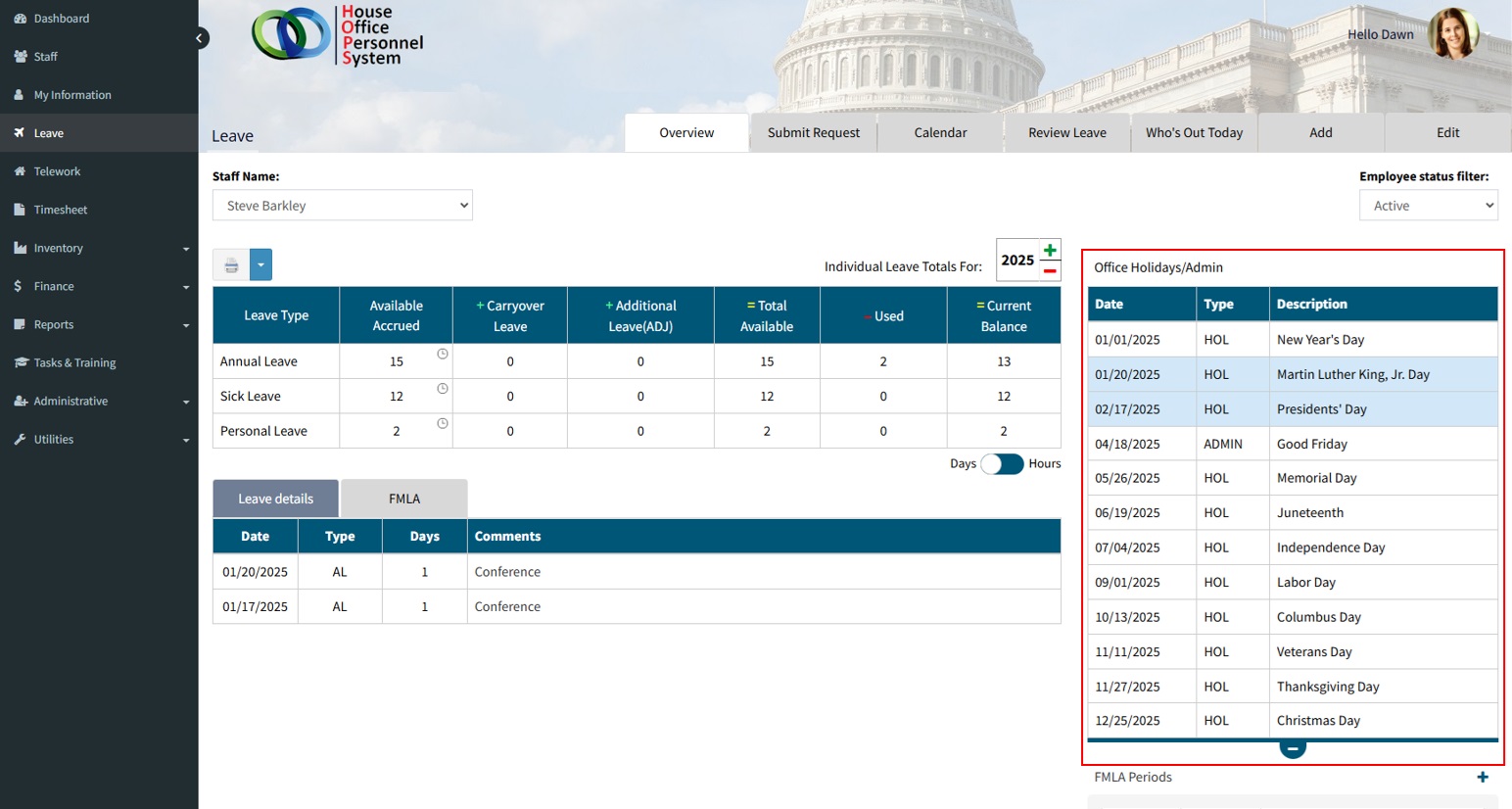
Holidays/admin days will also appear in the Leave Overview section on the right side of the page. Those occurring within the next 45 days will be highlighted in blue for easy identification.
Editing Existing Holidays/Admin Days
- Select the Holiday/Admin day you would like to edit.
- Modify any information in all required fields indicated by the red asterisk [*].
- Click the ‘Save Details’ button to save all changes made.