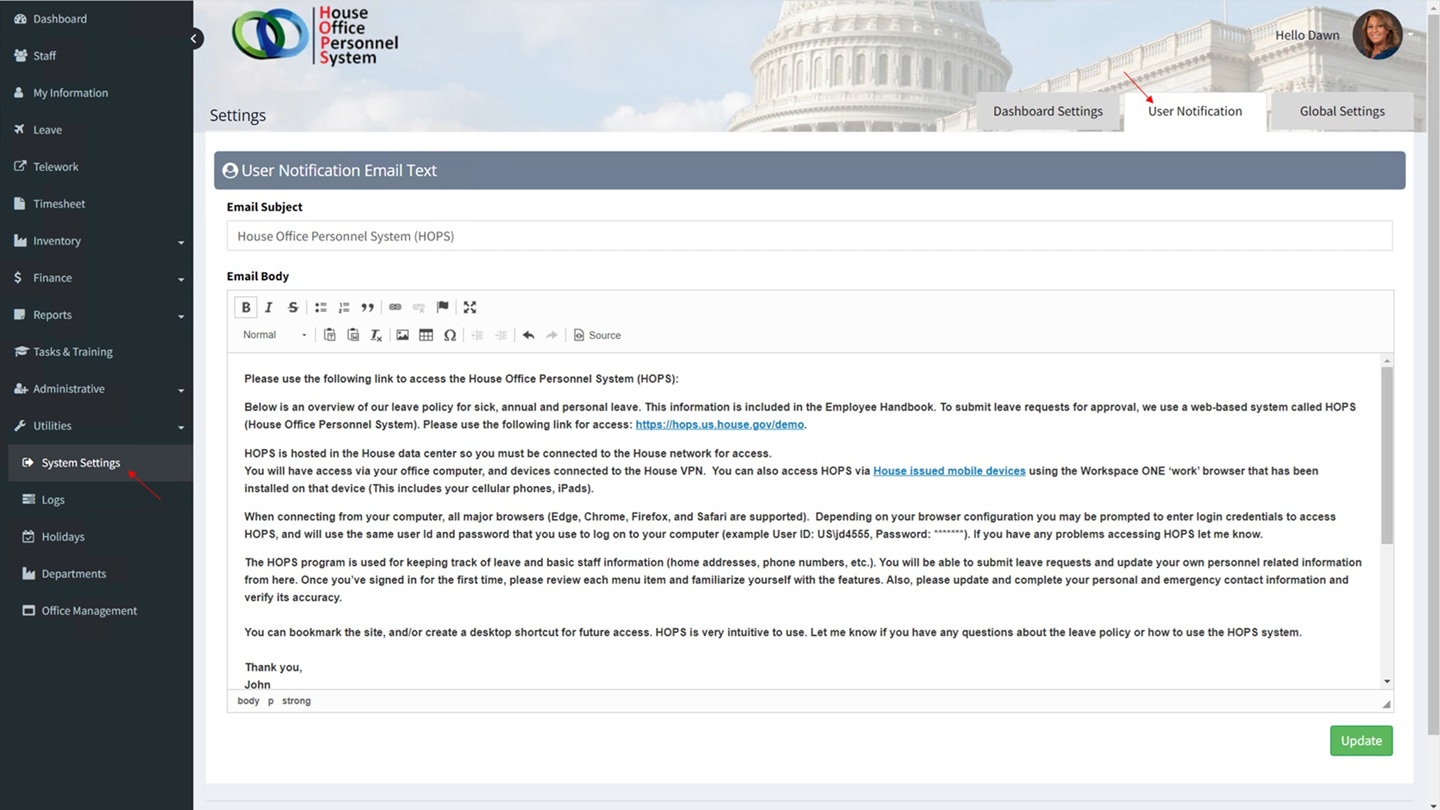
User Notification Email
Administrative users can send an introductory email from HOPS to new users, providing information about the application along with instructions of how to access HOPS.
Notifications can be sent to users from the ‘Manage User Access’ page [Administrative -> Manage User Access]. Select the user to be notified from the dropdown list and click the send notification icon/button at the bottom-right portion of the page.
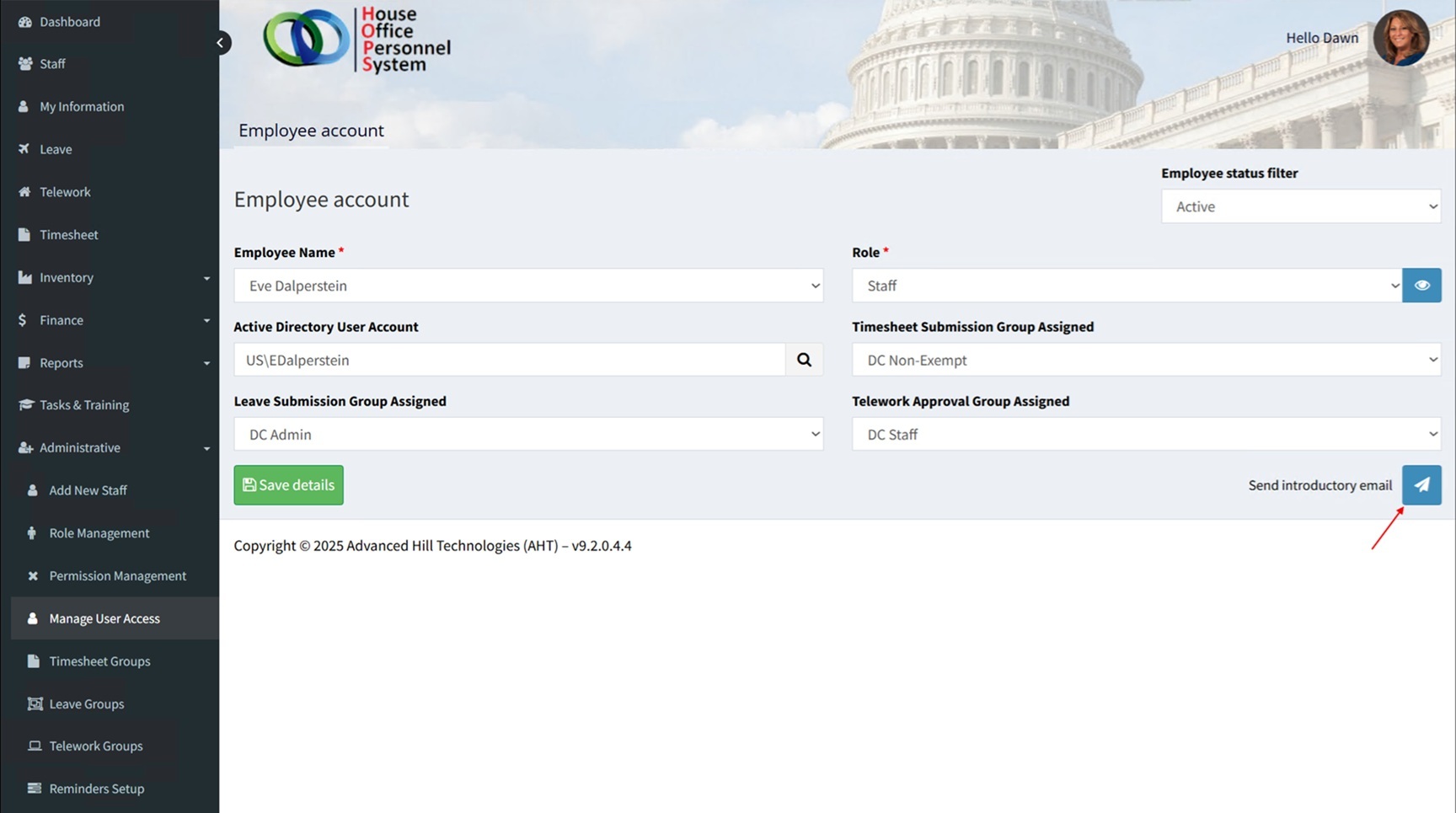
A window will appear with the template of the email to be sent. The message can be edited prior to sending. Click the ‘Send email’ button to send the message.

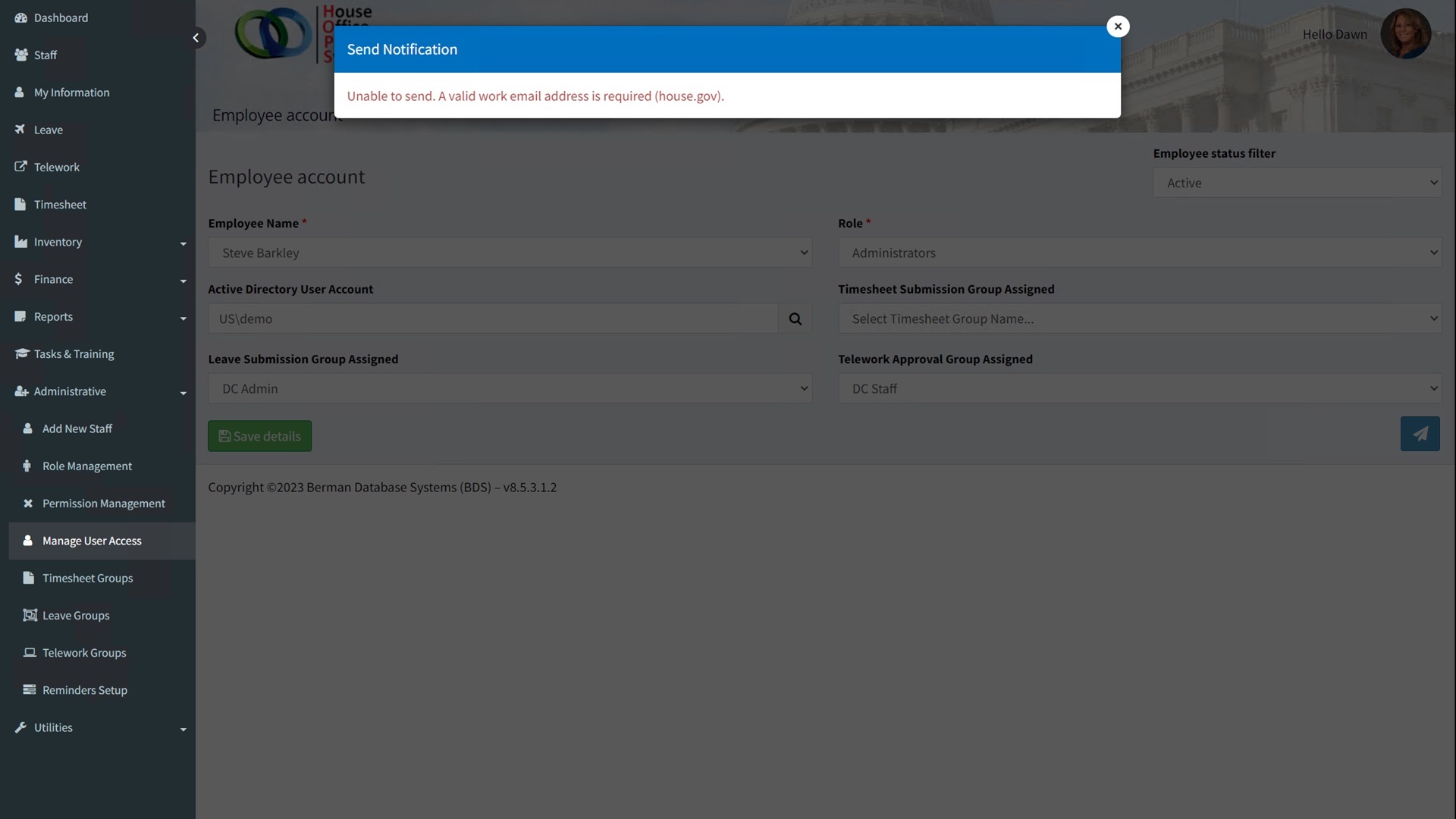
Note: HOPS will only send notifications to and from official House email addresses. If a House email address is not found in the users profile [Staff -> Personal (tab)], a notification message will appear and the email address will need to be added for the user.
The default email message template can be updated at any time by going to [Utilities -> System Settings -> Notification (tab)] from the left navigation menu.
The message subject and details can be modified to suit the office preferences.