Department Management
Department Management
The Department Management page allows administrators to manage of the departments that staff are assigned to. The departments can be added, edited, and deleted. Staff assignments can also be managed.
The department management page can be accessed by selecting [Utilities-> Departments] from the left navigation menu. 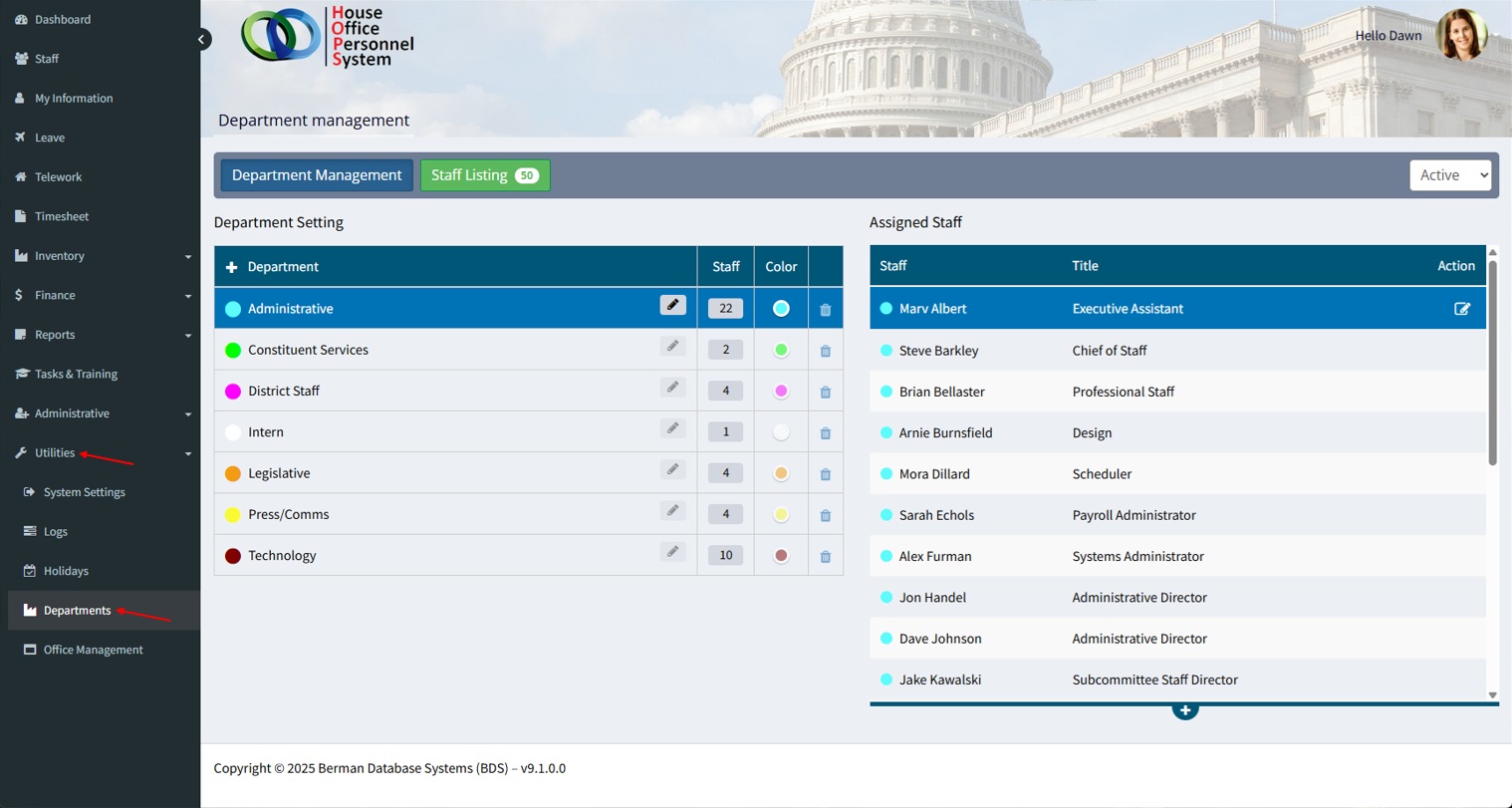
There are 2 sections/tables that are displayed when viewing leave workflows.
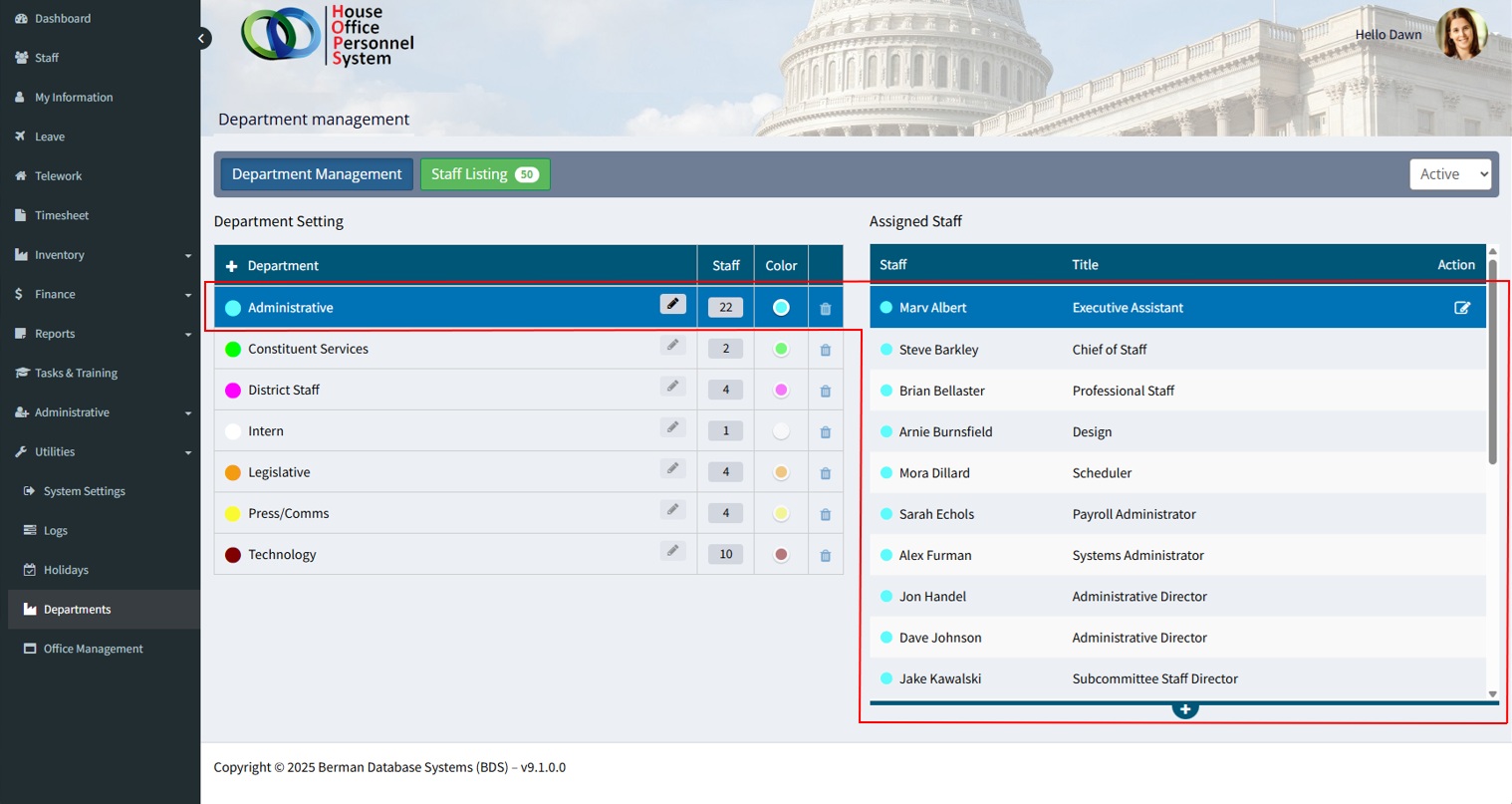
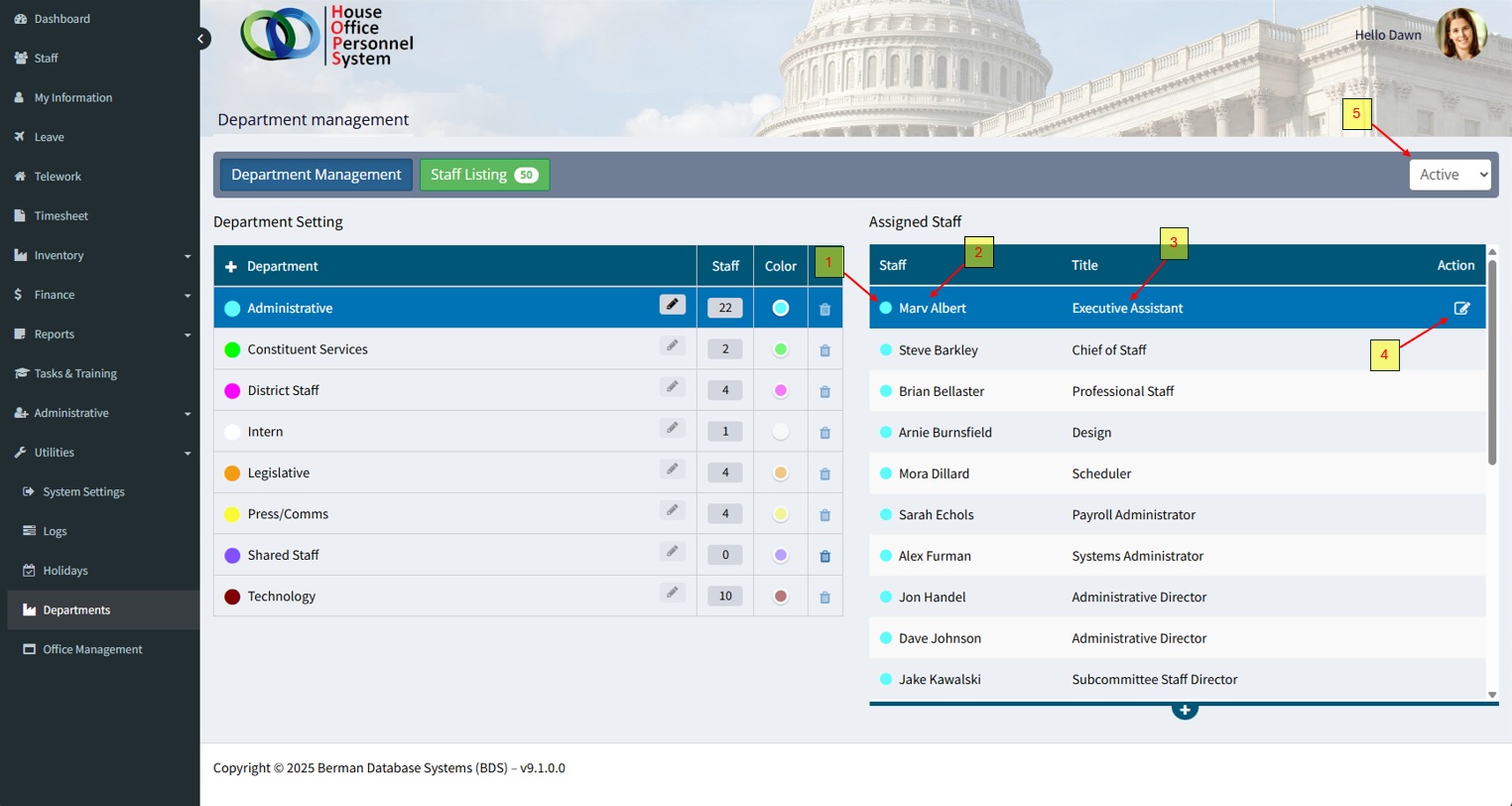
- Department– Add new departments, the number of staff assigned to the department, and the color selected to represent the department on the leave and telework calendars.
- Assigned Staff – Displays the staff that are assigned to the selected department and allows for editing of department assignments for staff.
Department
Selecting/clicking an department will display the assigned staff of the department in the table to the right.
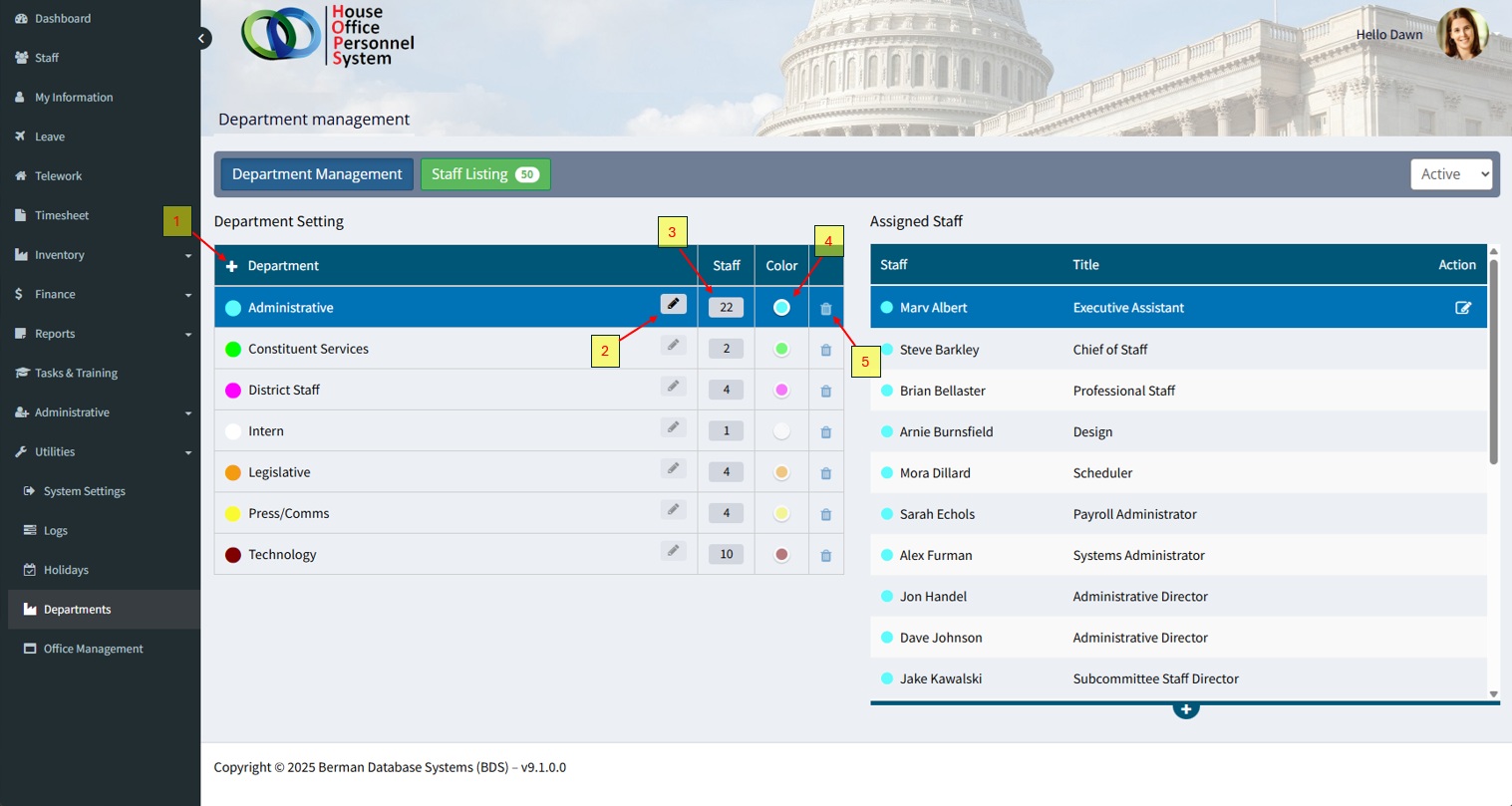
- Add department: Click the add [+] icon on the right side of the header to add a new department to the department list.
- Edit department: Allows administrators to edit a department’s name.
- Number of staff: Current number of staff assigned to that department.
- Department color: Represents a quick visual reference beside each staffers on telework or leave calendar when configured to display current department assignments.
- Delete department: Click the delete icon on the far right of the selected group.
Note: A department cannot be deleted if staff are currently assigned to the department. Remove/re-assign staff before deleting the department.
Add Department
To add a new department, click the [+] button located next to the Department header.
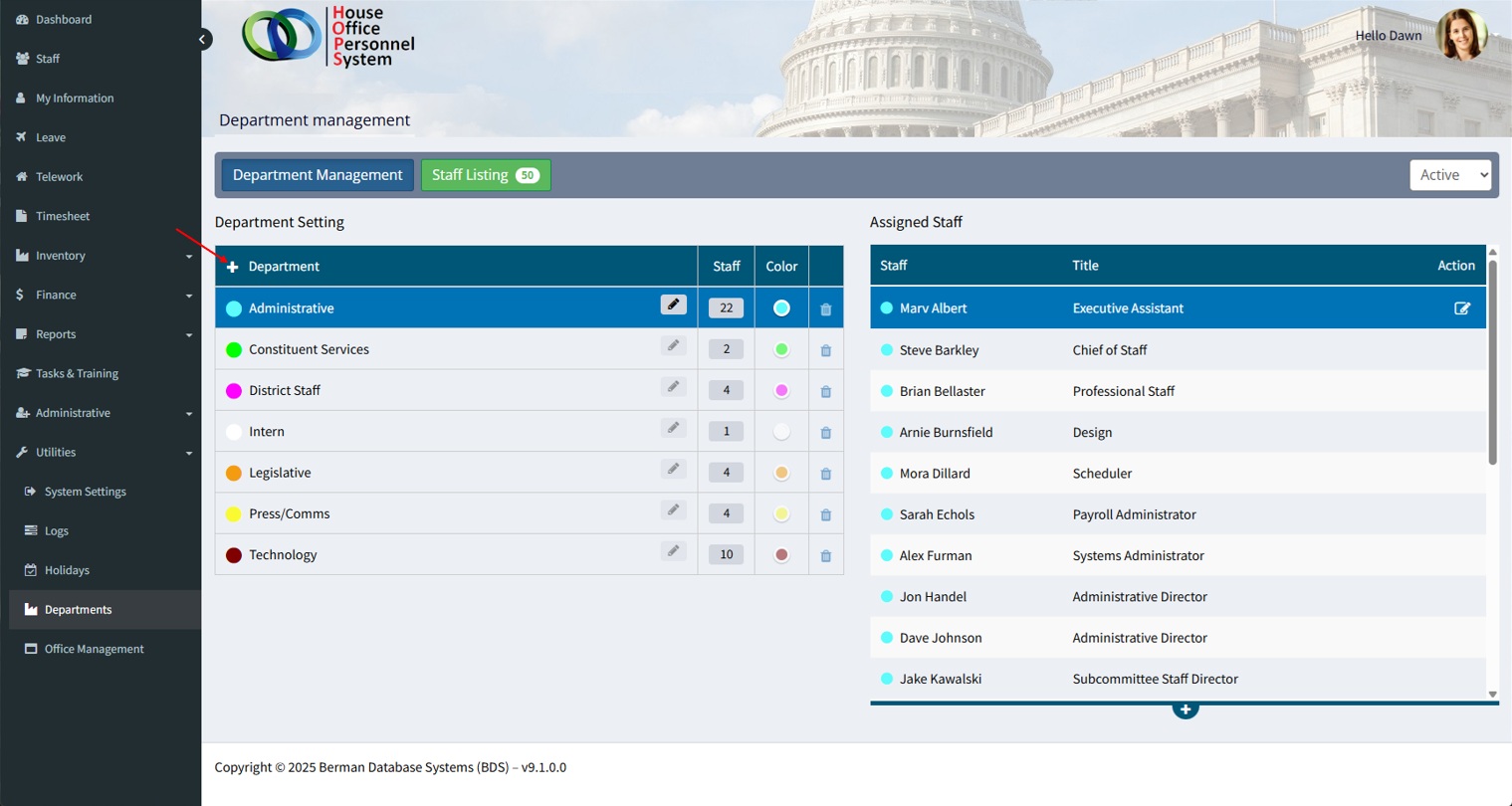
Once selected, the user will be prompted to enter the department name.
Once the name is entered, select the save icon to complete the process.
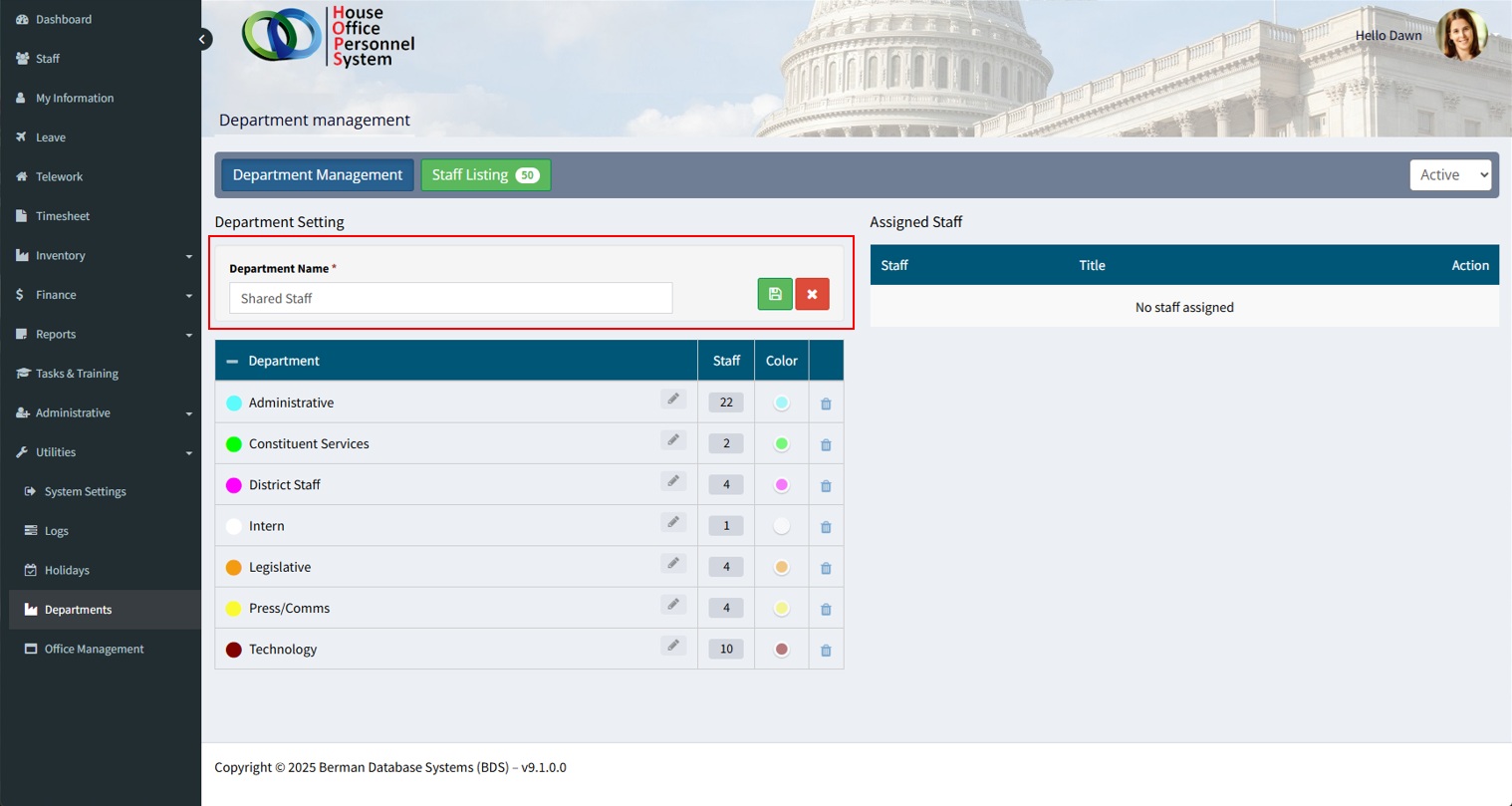
The new department will be added to the department directory.
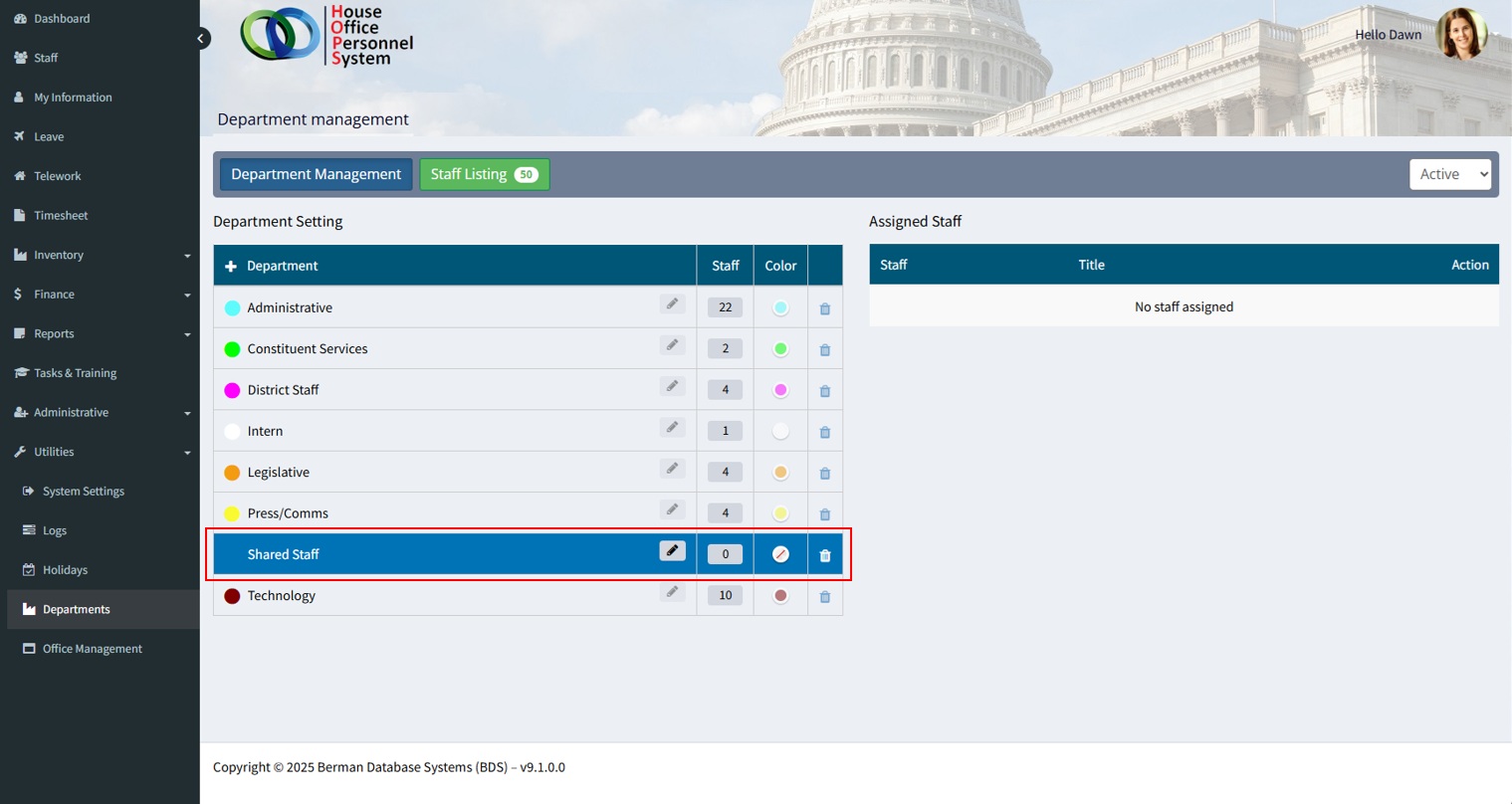
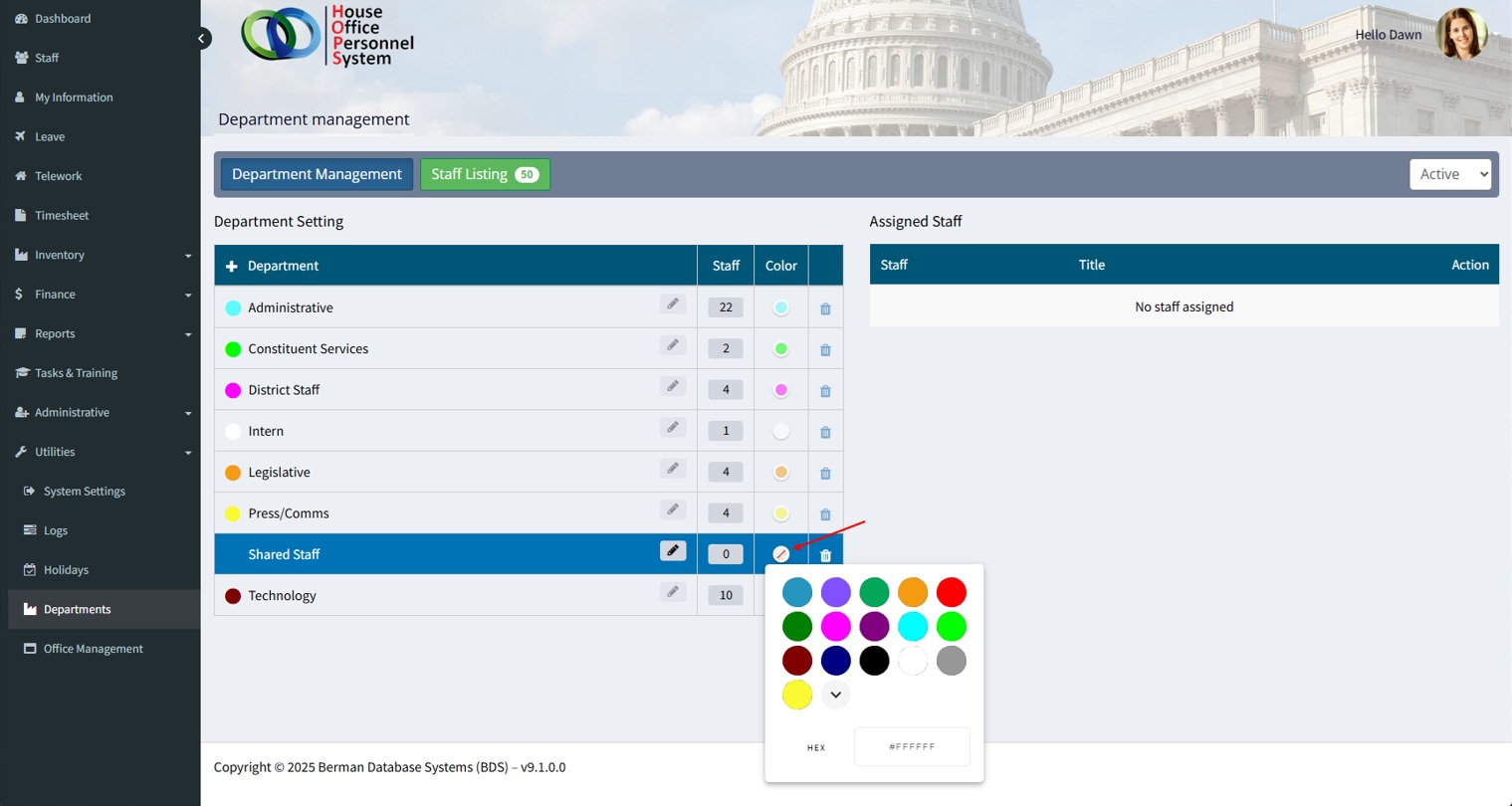
Assign a color to the department as a visual identifier. The color codes are used as quick visual identifiers when users view the leave and telework calendars.
Assigned Staff
The ‘Assigned Staff’ table displays the staff that are assigned to the selected department and allows for editing of department assignments for staff.
- Department color: A quick visual reference of what department the staffer is assigned to
- Staff name: Staffers name
- Staff title: Staffers title
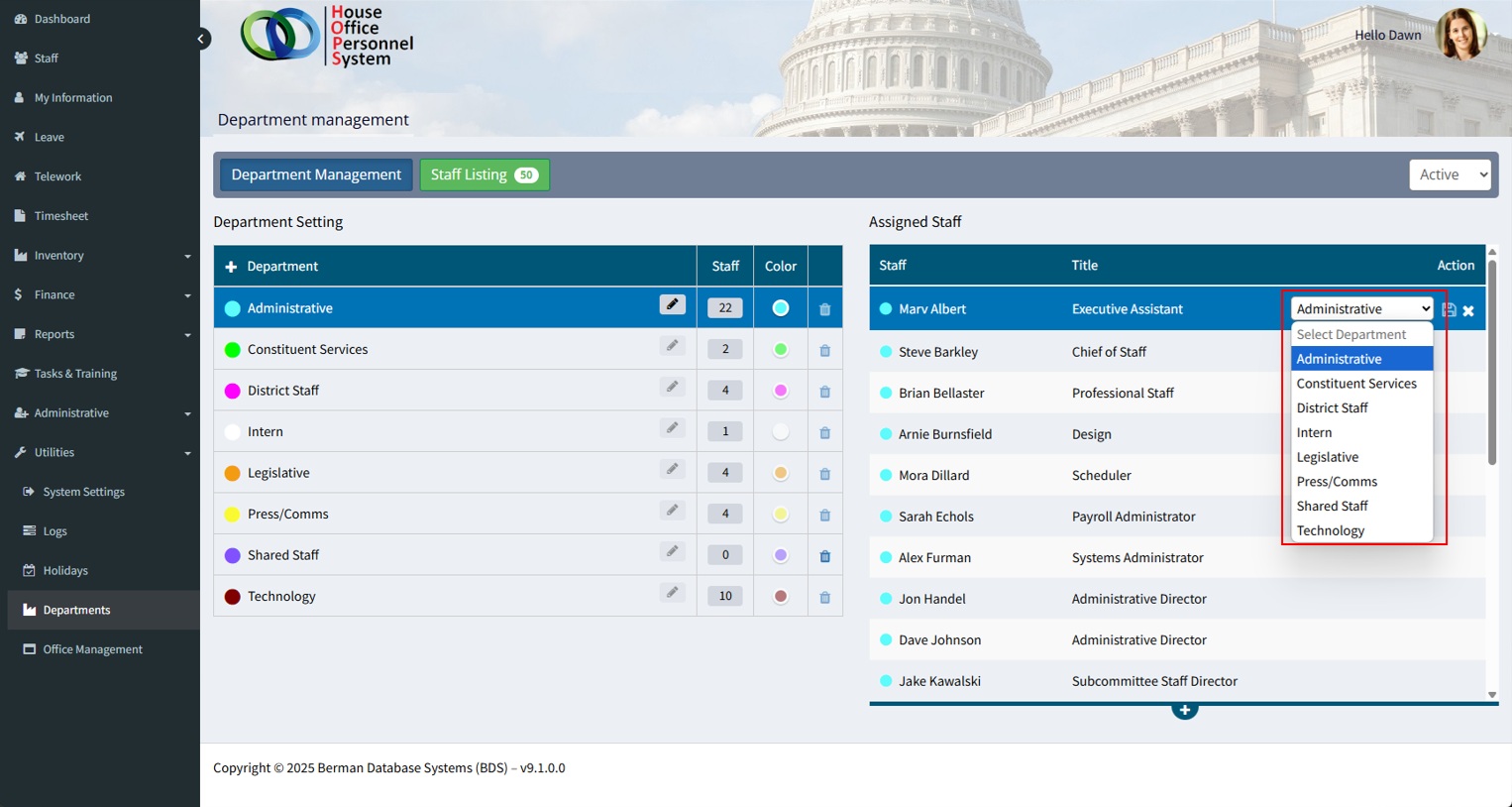
- Edit: The edit icon enables administrators to reassign staff to an department by selecting the desired department from the dropdown menu.
- Status filter: By default, the list of assigned staff will display current ‘Active’ staff. To view ‘Former’ staff, select the status filter (dropdown list) above the assigned staff.
Reassigning Staff
Administrators can reassign staff from either the ‘Department Management’ page or from the Staff Listing page.
To re-assign a staff members department assignment, select the department that the staffer currently is assigned to, locate and select the staffer in the list of ‘Assigned Staff’ and click the edit icon at the right side of the table. Select a new department assignment and click the save icon.
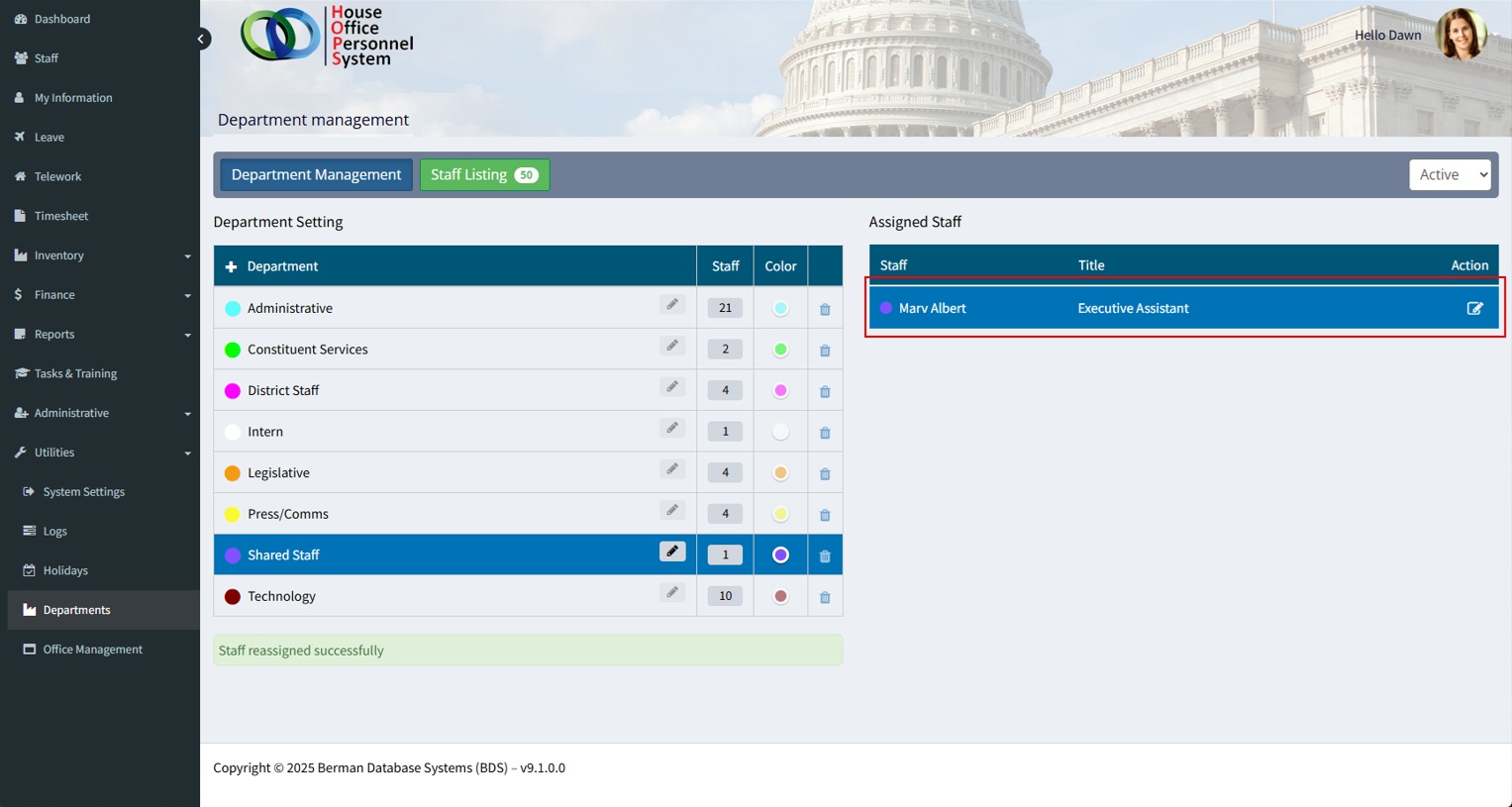
The staff member’s name will then be removed from the previous department’s staff list and added to the newly assigned department .
Staff Listing:
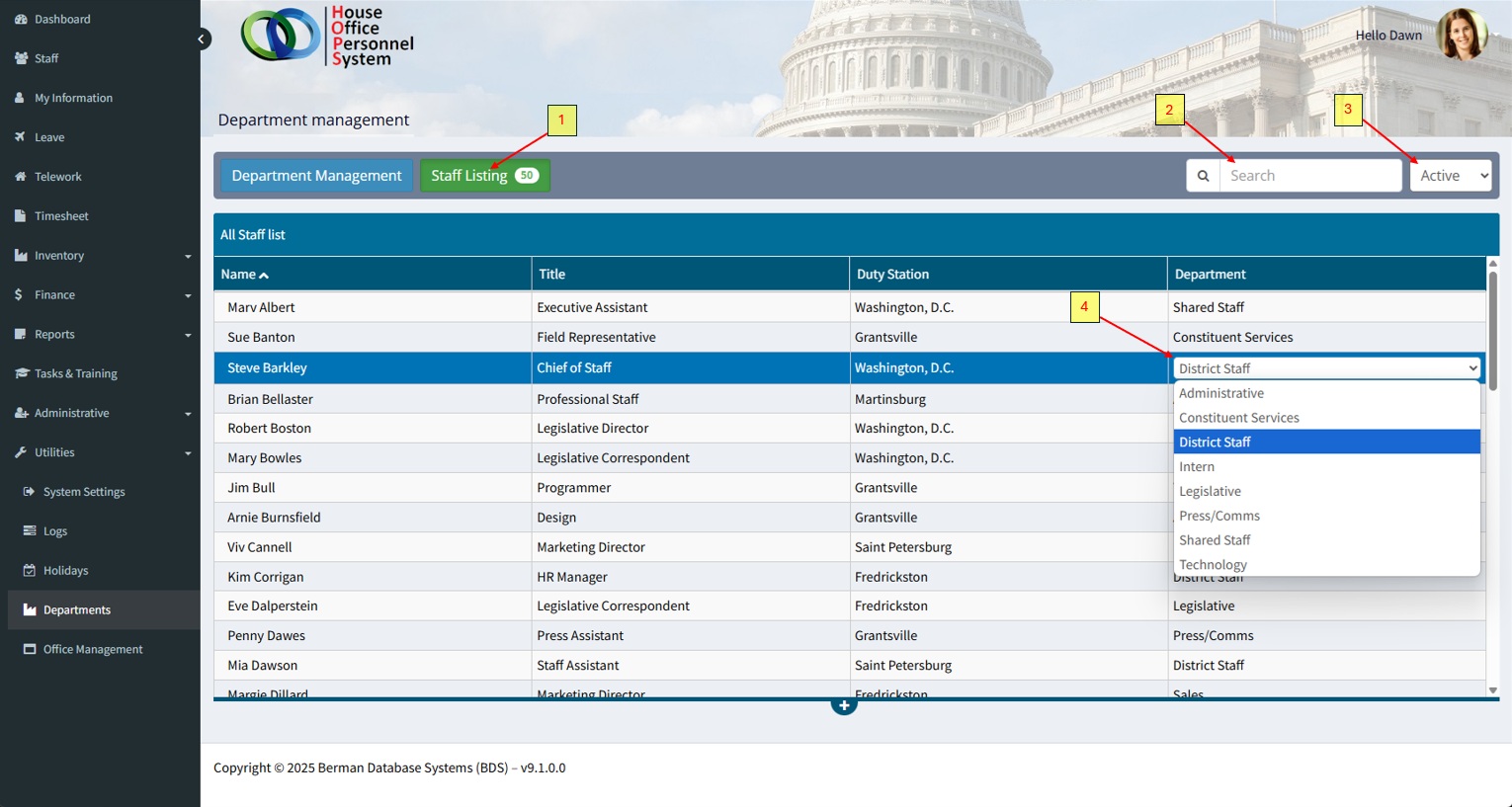
The ‘Staff Listing’ displays a list of staff (default order is alphabetical). This allows admins to quickly locate, review, and change department assignments as needed.
1. Click the ‘Staff Listing’ button to display the list of staff. The number of staff are also displayed on the button.
2. The search field filters the list based on the keyword search. All columns are searchable.
3. The status filter options are ‘All Staff’, ‘Active’, and ‘Former’. The default status is ‘Active’.
4. Duty station assignments can be modified by selecting the staffer and clicking on the ‘Duty Station’ that they are assigned to. A dropdown list will display, and the duty station assignment can be modified. The changes are automatically updated/saved when selected.